Apple Pencil Digital Planner Tips: How to Plan Faster Without Making Your Pages Messy
Use these Apple Pencil digital planner tips to write faster, navigate better, and keep your Goodnotes planning routine clean, readable, and sustainable.
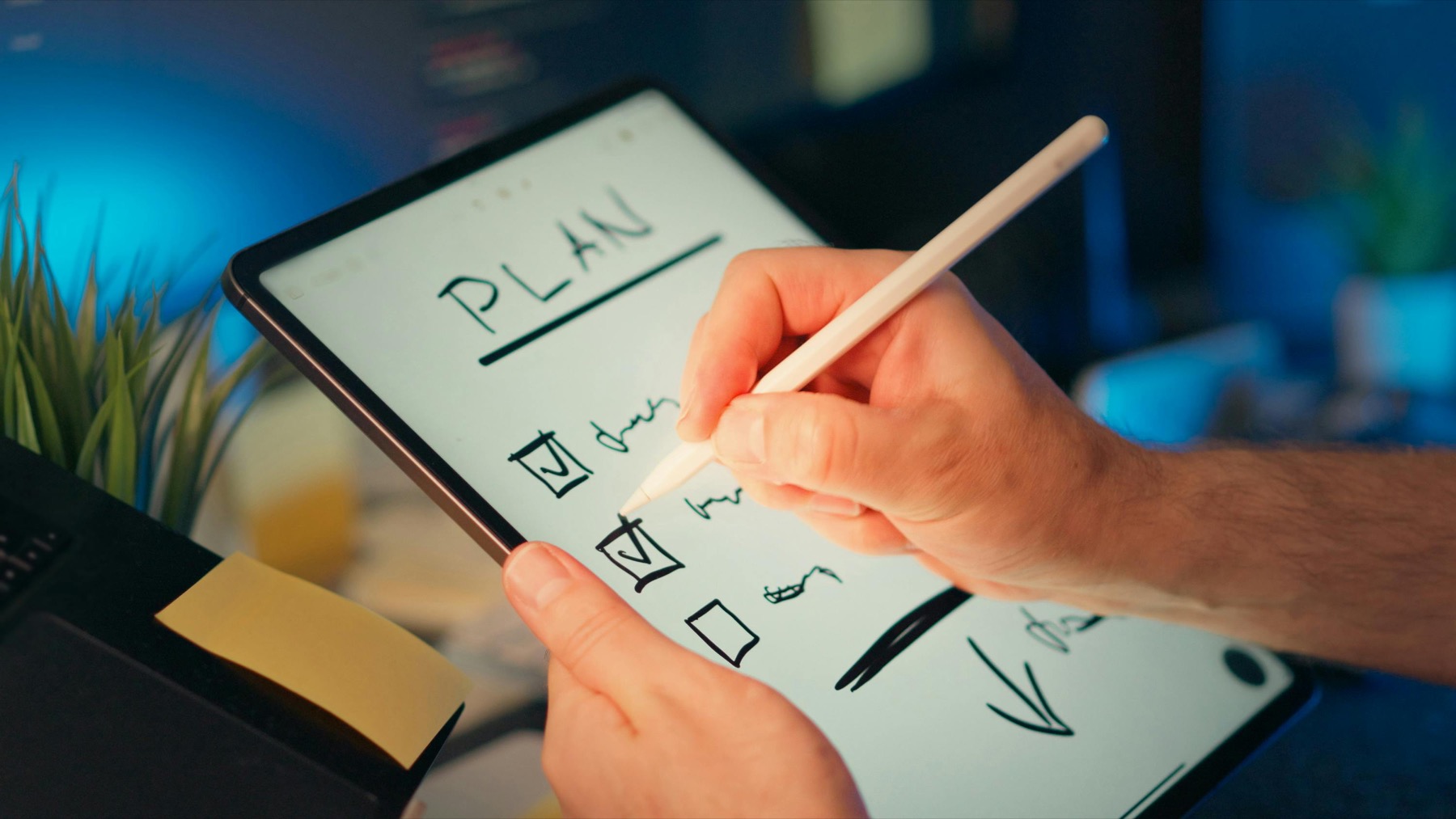
Photo by Jakub Zerdzicki on Pexels.
The biggest Apple Pencil upgrade is not prettier handwriting. It is the way it removes enough friction for weekly planning to feel almost automatic.
Why Apple Pencil changes digital planning so much
Typing into a digital planner can work, but handwriting with Apple Pencil changes the emotional feel of planning. It creates less distance between the thought and the page. You can circle, underline, cross out, and sketch a plan in seconds. That speed matters because planning habits are often lost in tiny moments of hesitation.
The real benefit is not aesthetic. It is behavioral. When the tool makes it easier to capture a task, mark a win, or rewrite a priority, you stay in motion. That is why many iPad users finally stick with a planner after switching from finger taps or keyboard-only input to a stylus-based workflow.
Set up your planner for speed, not decoration
Most users do not need a complicated pen kit or twelve color codes. They need one legible writing color, one highlight color, and a layout that gives the writing enough room to breathe. When every page is overdesigned, Apple Pencil stops feeling efficient and starts feeling cramped.
A better setup is surprisingly plain. Keep one consistent pen style for normal planning, use one accent color for priorities, and treat stickers as occasional support instead of the main event. That approach makes weekly pages easier to scan and makes the planner feel less like a craft project.
This is where a calmer layout helps. The Simple Undated Digital Planner works well with Apple Pencil because the pages leave enough visual space for handwriting, while the 2026 Kawaii Cat Digital Planner gives a more expressive look without sacrificing usability.
- arrow_right_altUse one default pen and one highlight color for faster decisions.
- arrow_right_altKeep handwriting zones open instead of filling every space with stickers.
- arrow_right_altSave decorative elements for monthly pages or milestone moments.
Use handwriting for capture and tabs for movement
The best Apple Pencil workflows combine natural writing with fast navigation. Handwriting helps you think. Tabs and hyperlinks help you move. If your planner lacks either of those, the system slows down. You either struggle to capture ideas quickly or you waste time hunting for the right page.
A tab-heavy planner or notebook becomes much more useful when the writing experience is frictionless. That is why digital planning works best when you stop scrolling and start navigating intentionally. Open the dashboard, jump to the week, make notes, then move back out when you need a monthly view or project page.
If you want that navigation feeling inside larger notebooks, the PlannerPier Digital Notebook for iPad & GoodNotes and the GoodNotes Tabs Generator make it easier to understand how linked sections can save time every day.
How to keep Apple Pencil planning readable
A common problem is that handwritten planner pages become hard to scan after a few busy weeks. The fix is not perfect handwriting. The fix is structure. Put tasks in the same zone every time. Keep appointments visually separate from priorities. Use short phrasing. Leave white space so the eye can reset.
This matters especially when your planner is doing real work. Work projects, household logistics, health reminders, and habit tracking can blur together fast. A readable system makes it easier to return later and understand what the page is telling you.
One useful rule is to give each page a single job. Let the weekly page hold commitments. Let the daily page hold focus. Let the notes page hold overflow thoughts. That separation keeps Apple Pencil pages from turning into visual noise.
A weekly Apple Pencil routine that actually saves time
Start with a short weekly reset. Open the monthly view, glance at deadlines, then move into the weekly spread. Write your fixed commitments first, then add the three outcomes that would make the week feel successful. Each morning, open the daily page only if the weekly view is no longer enough.
This pattern matters because it creates tiers of attention. You do not need to redesign your planner every morning. You just need a stable system for when to zoom out and when to zoom in. Apple Pencil becomes valuable because it keeps those transitions light and fast.
If you want even more structure for a busy season, the Ultimate Planner Bundle is a natural upgrade because it combines planner pages, stickers, and tool access into one system instead of making you assemble everything from separate files.
What to do if your planner still feels slow
If you own an Apple Pencil and planning still feels clunky, the problem is rarely the stylus. It is usually one of three things: too much visual clutter, too much page variety, or no reliable navigation pattern. Reduce the number of page types you use. Make your weekly review shorter. Choose a layout that feels calmer at a glance.
The right digital planner should save time, keep your week organized, and make it easier to come back after a chaotic day. Apple Pencil can support that, but only when the planner itself is designed around usability.
Frequently asked questions
Is Apple Pencil worth it for digital planning?
For many iPad users, yes. Apple Pencil makes task capture, annotation, and weekly planning feel faster and more natural than finger-based navigation alone.
How do I stop my digital planner pages from looking messy?
Use fewer pen styles, keep writing zones consistent, rely on white space, and reserve decoration for occasional emphasis instead of every page.
What kind of planner works best with Apple Pencil?
A clean hyperlinked planner with clear weekly and daily writing areas usually works best because it supports both handwriting speed and navigation.
Which PlannerPier product is best for Apple Pencil users?
The Simple Undated Digital Planner is a strong general pick, while the Digital Notebook is better if you want more tab-based project organization.
Make your Apple Pencil workflow feel lighter, not busier
PlannerPier planners and notebooks are designed to help you save time, stay organized, and move through your week with less friction. Explore https://www.plannerpier.com/ and find the layout that feels easiest to write in.