How to Use a Digital Notebook for Project Planning in Goodnotes Without Losing the Big Picture
Learn how to turn a digital notebook into a project planning system in Goodnotes with tabs, section hubs, meeting notes, action pages, and review routines.
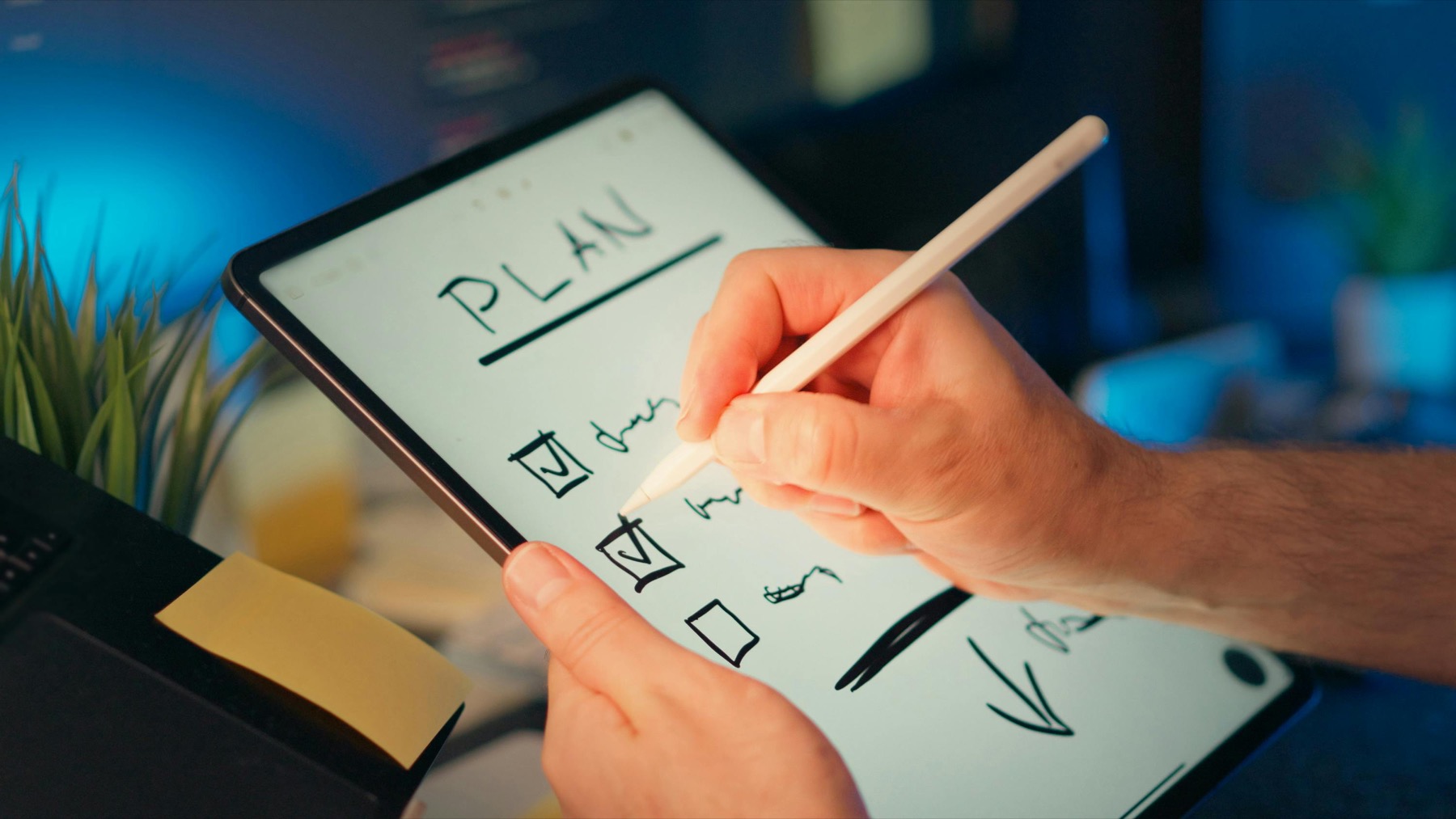
Photo by Jakub Zerdzicki on Pexels.
A digital notebook becomes useful for project planning when it holds context and next actions in a way that is easy to revisit, not when it becomes a dumping ground for every note you have ever written.
Free navigation help
Test linked notebook navigation before you build a bigger system
Use the PlannerPier GoodNotes Tabs Generator if you want to understand why tabs and section hubs make digital notebooks feel faster and more premium to use.
Try the Tabs GeneratorWhy a digital notebook often beats a traditional planner for projects
Planners are excellent for dates, weekly commitments, and recurring routines, but projects are messier than routines. They generate ideas, notes, research, drafts, revisions, and action items that do not fit neatly into one weekly spread. That is why many people feel organized in their planner but still scattered in their work. The planner tells them what is due. It does not always hold the thinking that makes the work move.
A digital notebook fills that gap well. In Goodnotes, a notebook can act like a project home base with linked sections, dedicated templates, and enough room for rough thinking and polished planning to coexist. Competitor notebook products often sell this idea through page counts and tab numbers alone, but the real value is functional: one clean place to store context, decisions, and next steps so you stop bouncing between random notes, screenshots, and half-finished lists.
Set up each project like a small operating system
A strong project notebook section needs only a few layers. Start with an overview page that answers four questions: what is the project, what matters most right now, what is the next milestone, and what are the open risks or blockers. Then create a next-actions page for short, visible execution tasks. Add a notes section for meetings, research, and brainstorming. Finally, keep an archive or reference page so useful material does not crowd your active workspace.
This structure matters because many people treat digital notebooks like endless blank pages. That leads to information loss. A better notebook behaves more like a map. You know where project vision lives, where meeting notes go, where the current action list sits, and where older material can be stored without disappearing. Goodnotes works particularly well for this because handwriting, imported PDFs, screenshots, and typed notes can all live side by side in the same project environment.
- arrow_right_altCreate one section hub per active project.
- arrow_right_altUse an overview page to track scope, milestone, and blockers.
- arrow_right_altKeep a separate next-actions page so execution stays visible.
- arrow_right_altArchive old notes instead of leaving them mixed into active planning.
Product spotlight
A notebook built for multi-project thinking
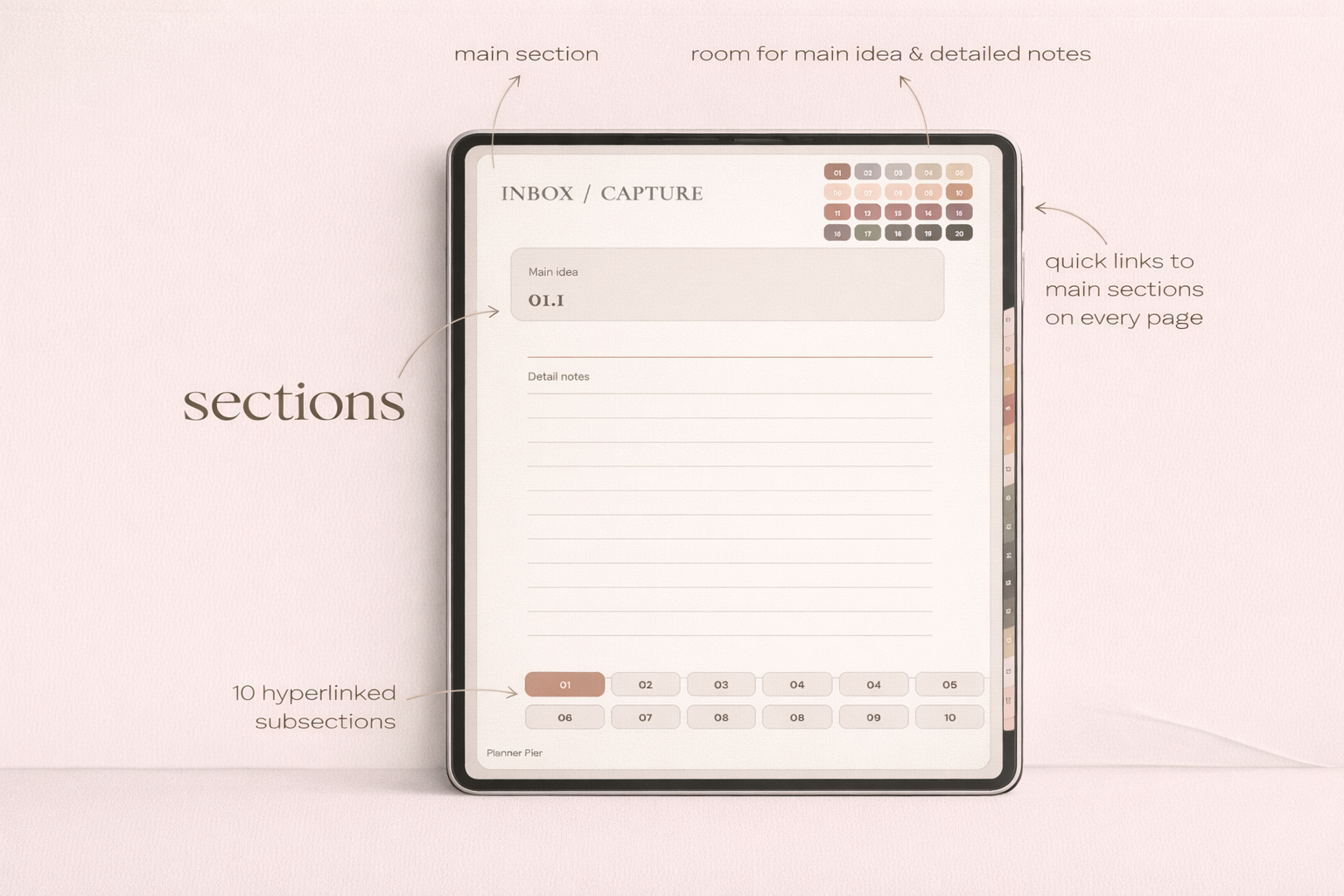
PlannerPier's Digital Notebook for iPad & GoodNotes gives you linked tabs, subpages, templates, and reusable structure so project notes, meeting records, and action planning can live in one system without becoming messy.
- check_circle20 tabs and linked subpages for faster navigation
- check_circle88 templates and checklist layouts for repeatable planning
- check_circleSeven notebook colorways with covers and sticker extras included
Use tabs, section hubs, and templates to reduce friction
This is where hyperlinked notebooks become far more usable than plain PDFs or generic blank note collections. Tabs let you jump between projects. Section hubs let you move from overview to notes to archive without scrolling through dozens of pages. Templates help you keep repeated planning moments consistent, such as weekly project reviews, client call notes, content outlines, or launch checklists. The less friction there is between thinking and finding the right page, the more likely you are to keep the system current.
The PlannerPier Digital Notebook for iPad & GoodNotes is built around exactly that idea. It includes 20 tabs, linked subpages, multiple templates, checklists, covers, and bonus stickers, which makes it easier to turn one notebook into a full project control center. If you want even more navigation clarity, the PlannerPier GoodNotes Tabs Generator is a useful companion because it helps you understand how linked sidebar-style navigation improves workflow speed in larger notebooks.
How to connect your notebook to weekly execution
A notebook should not replace your planner. It should strengthen it. The easiest system is to let the notebook hold project context while your planner holds the timing decisions. During a weekly review, open each active project section and ask what must move this week. Pull only the true next actions into your weekly planner. Leave the deeper notes, references, and brainstorming in the notebook where they belong.
This separation prevents two common problems. First, it stops the planner from becoming bloated with too much detail. Second, it stops the notebook from becoming intellectually rich but operationally useless. One system stores context. The other turns context into movement. When the two roles are clear, project planning feels lighter because you no longer expect one page type to do every job at once.
Who benefits most from this kind of setup
This workflow is especially useful for freelancers, small business owners, students managing larger coursework, content creators, agency leads, and anyone handling multiple moving parts without a formal project management tool they actually enjoy using. If your projects involve meetings, brainstorming, drafts, checklists, and review cycles, a digital notebook gives you a more flexible home than a standard planner spread ever could.
It also suits people who like handwriting but need more structure than a pile of paper notebooks can offer. Goodnotes lets you collect typed inserts, sketches, screenshots, PDFs, and handwritten ideas in one place, which makes project review faster later. If you are tired of losing good ideas inside random note files, a linked notebook can become one of the most practical upgrades in your digital planning system.
The easiest way to start this week
Choose one active project and build only four pages: overview, next actions, notes, and archive. Then create one weekly review block where you scan those pages and pull decisions into your planner. If that works, repeat the structure for your next project. You do not need a huge setup to feel the benefit. You only need a notebook structure that helps you find what matters faster than your current system does.
If you want a notebook that is already designed for linked navigation and reusable project sections, PlannerPier gives you a cleaner starting point than building everything from scratch. A well-made digital notebook saves time, reduces scrolling, and makes it easier to hold the big picture and the daily work at the same time. That is exactly what strong project planning should do.
Frequently asked questions
Is a digital notebook better than a digital planner for project planning?
For project context, yes. A notebook gives you more room for notes, research, and structured project pages, while a planner is still better for weekly timing and scheduling decisions.
How should I organize a project notebook in Goodnotes?
Give each project an overview page, a next-actions page, a notes section, and an archive area so information stays easy to find and review.
Do hyperlinked tabs matter in a digital notebook?
Yes. Tabs and section hubs reduce scrolling and make larger notebooks far more practical when you manage multiple projects or longer planning cycles.
Which PlannerPier product fits this use case best?
The Digital Notebook for iPad & GoodNotes is the clearest fit because it is designed around linked tabs, section depth, reusable templates, and project-friendly navigation.
Build a notebook that keeps project context and next actions together
PlannerPier digital notebooks are designed to save time, organize projects clearly, and keep your Goodnotes workflow easier to revisit. Explore https://www.plannerpier.com/ to find the notebook or planner system that fits your work.