How to Start Digital Planning in Goodnotes Without Feeling Overwhelmed
Learn how to import a digital planner into Goodnotes, use hyperlinks, keep handwritten pages searchable, and build a realistic weekly planning routine.
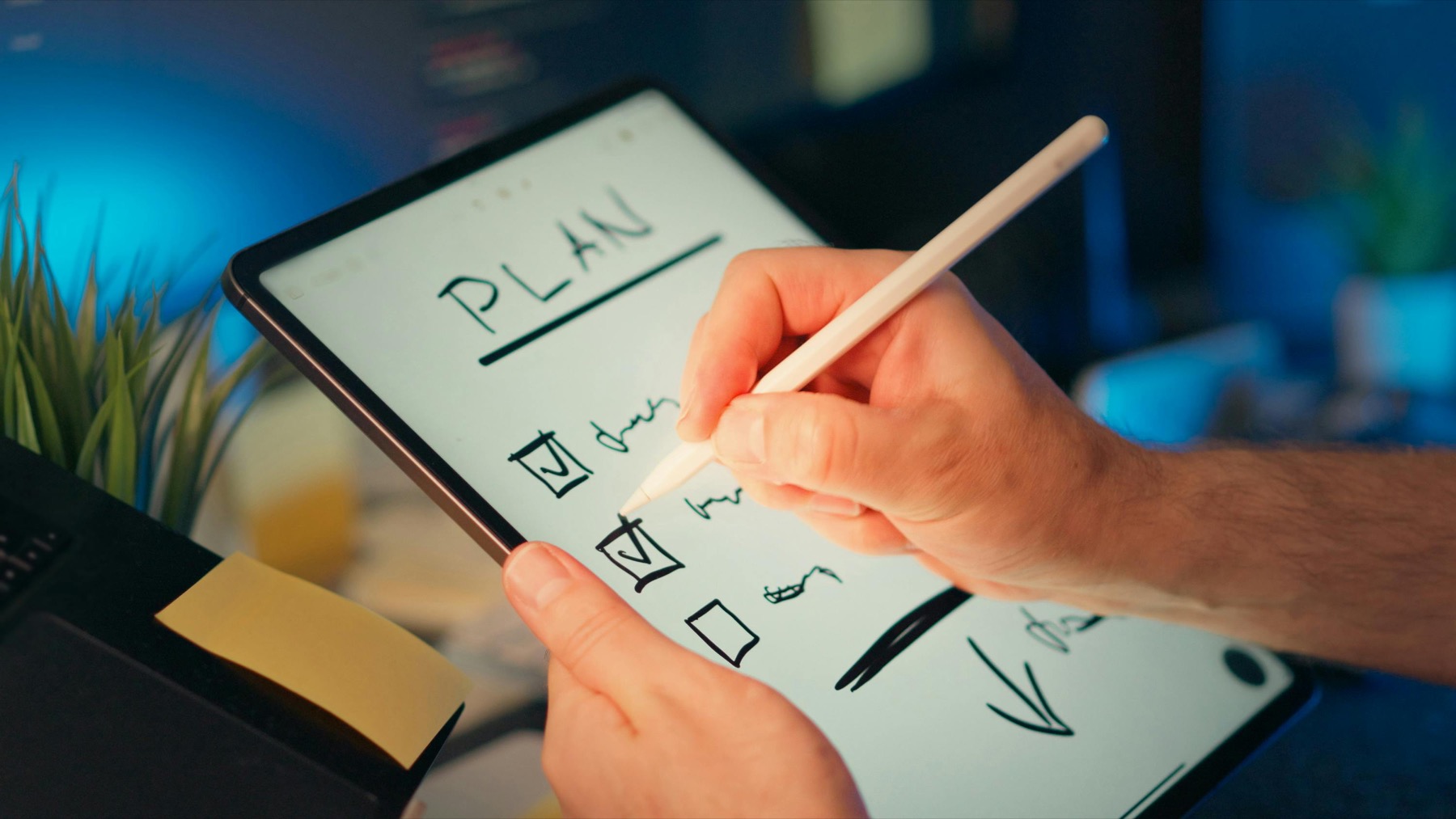
Photo by Jakub Zerdzicki on Pexels.
Digital planning in Goodnotes becomes easy when you stop trying to set up everything at once and focus on one calm weekly rhythm.
Why Goodnotes feels approachable for first-time digital planners
Goodnotes makes a strong starting point because the workflow is easy to understand: import your PDF planner, tap through linked tabs, write naturally with Apple Pencil, and keep related notes in the same library. You do not need to learn a complicated productivity system before the app becomes useful.
Its help center also covers planner-friendly features that reduce friction, including importing files, navigating PDF hyperlinks, creating links inside notebooks, and enabling handwriting recognition. Those details matter because the less you fight the app, the more likely you are to keep your planning habit.
Set up the minimum viable planner, not the perfect one
The most common beginner mistake is importing a beautiful planner and then spending an hour choosing stickers, pen colors, and custom covers before making a single useful decision. A better approach is to build a minimum viable planner setup you can repeat tomorrow.
Start with a dated or undated planner, choose one inbox page for loose thoughts, one weekly spread for commitments, and one daily page for focused action. Once that rhythm feels easy, then add trackers, stickers, or wellness sections.
- arrow_right_altPin your yearly dashboard and monthly overview in your mind as navigation anchors.
- arrow_right_altUse weekly pages for commitments, not for storing every idea you have.
- arrow_right_altKeep one spare notes page for brain dumps so clutter does not leak into your schedule.
Use search and links to reduce friction every week
A digital planner becomes powerful when you stop treating it like paper and start using the features that save time. Goodnotes can index handwritten notes and PDFs for search, which makes it easier to find old plans, lists, and project notes after the week gets busy.
Links also help you move faster. Imported planners with linked tabs let you jump between sections quickly, and internal links inside notebooks can connect project pages, reference lists, or recurring routines. That means less hunting and more doing.
A simple weekly routine that actually sticks
Open your planner once for a 10-minute weekly reset and once for a 5-minute daily check-in. During the weekly reset, move unfinished items forward, note your fixed commitments, and choose three outcomes that would make the week feel successful. During the daily check-in, pick your top priorities before opening messages.
This is where a thoughtfully designed planner pays off. If the layout is soft, clear, and not overloaded with decoration, you are much more likely to return to it. That is the difference between buying a digital planner as a file and using it as a habit.
Frequently asked questions
Can I import a PDF digital planner into Goodnotes?
Yes. Goodnotes supports importing PDF files, which is exactly how most digital planners are delivered and used.
Do Goodnotes digital planners support hyperlinks?
Yes. Goodnotes documents how to navigate internal and external PDF hyperlinks, which is why linked tabs work well for planner dashboards.
How do I make my Goodnotes planner easier to keep up with?
Use fewer sections, keep one weekly review habit, and choose a planner layout that makes navigation obvious and uncluttered.
Keep your first digital planner beautifully simple
PlannerPier layouts are designed to feel light, readable, and beginner-friendly inside Goodnotes from the first import.