How to Use Digital Stickers in Goodnotes and Notability Without Making Your Planner Messy
Learn how to use digital stickers in Goodnotes and Notability, where stickers actually help productivity, and how to keep your planner pages clear instead of cluttered.
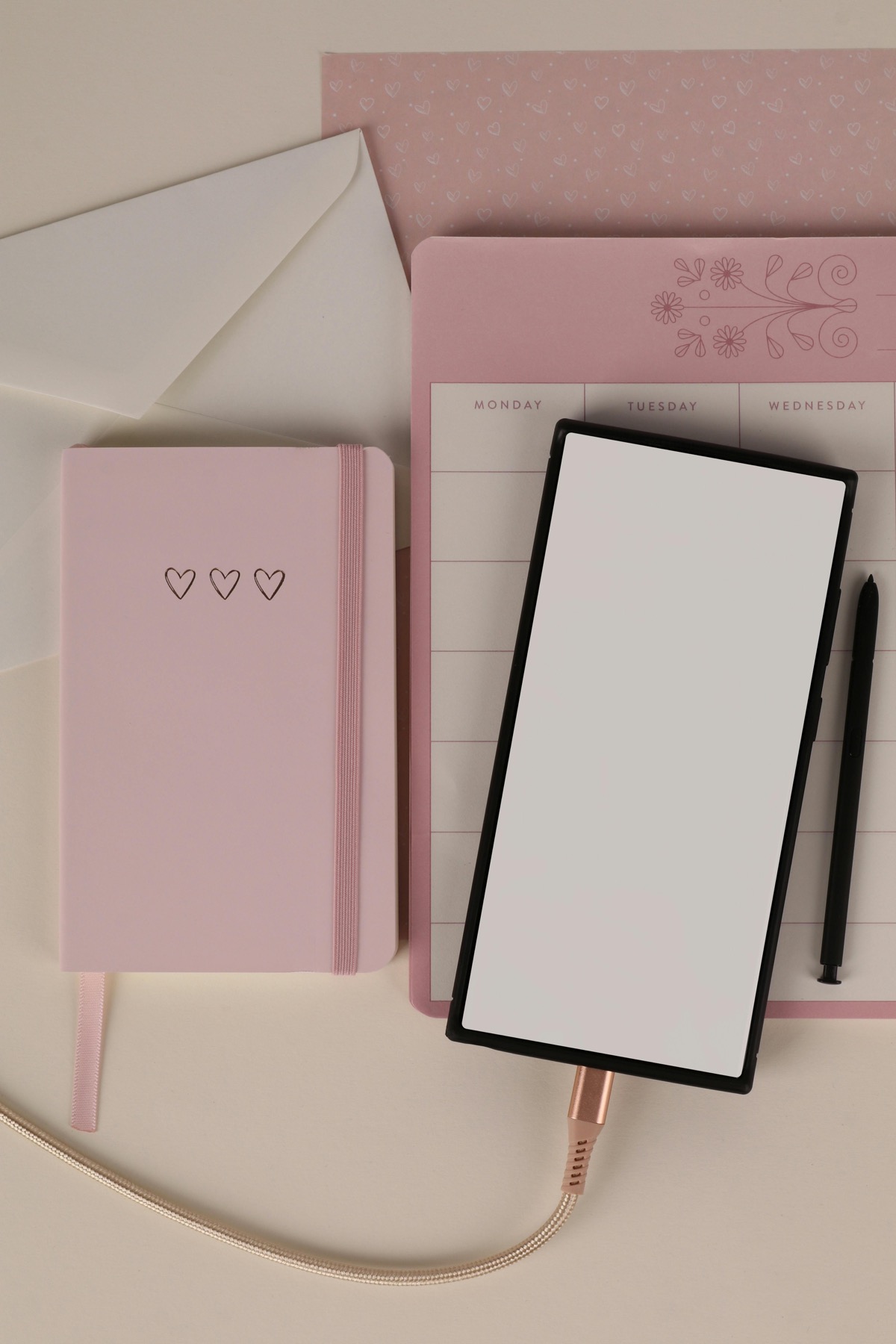
Digital stickers can make a planner more functional, but only if they serve the workflow. The goal is better visibility and faster planning, not decorative overload.
Why digital stickers help some planners and ruin others
Many digital planning beginners assume stickers are mainly cosmetic, which is why they either ignore them completely or overuse them in a way that makes the planner harder to read. In practice, stickers can be valuable when they act as visual shortcuts. A meal icon can flag food prep days. A study icon can separate revision sessions from admin work. A bill icon can make finance tasks stand out instantly during a weekly review.
The problem starts when stickers become decoration without purpose. Once every page is filled with icons, tape, labels, and doodles, the structure of the planner disappears. What should help your brain scan quickly starts slowing it down. Good sticker use adds clarity. Bad sticker use adds friction.
A simple sticker system that actually improves planning
The easiest way to use stickers well is to assign meaning before you start. Pick a handful of recurring categories that matter in your week, such as work, study, self-care, errands, money, or appointments. Then keep one sticker or icon style for each category so you can glance at a page and understand its balance immediately.
This works especially well with PlannerPier Planner Icons Digital Stickers, because the pack covers common planner moments without forcing you into an overly themed layout. Instead of asking what sticker looks cute today, you build a small visual language that helps you move faster.
- arrow_right_altUse stickers to flag categories, not to replace clear written tasks.
- arrow_right_altKeep one consistent meaning per icon so review pages stay scannable.
- arrow_right_altUse stickers sparingly on weekly pages and a little more freely on dashboards or notes pages.
- arrow_right_altReview your page after decorating and remove anything that weakens readability.
Product spotlight
A sticker pack that stays useful after the first week
PlannerPier Planner Icons Digital Stickers are designed as soft, hand-drawn visual markers for planners, notebooks, study pages, routines, and life admin rather than as decorative filler.
- check_circle50 planner-friendly icons in a cohesive pastel style
- check_circleGoodnotes-ready sticker book plus individual PNG files for any app
- check_circleWorks naturally with weekly pages, notes hubs, and project dashboards
How to use stickers in Goodnotes without visual overload
Goodnotes is a natural place for sticker use because many planners already feel notebook-like and flexible inside the app. The trick is to keep your weekly page as a command center. If a sticker helps you notice a category quickly, keep it. If it only fills blank space, it is probably not helping. This is especially true for pages you reopen all week, because novelty fades fast but clutter remains.
Sticker packs also work well alongside more open products such as the PlannerPier Digital Notebook for Goodnotes. In a notebook environment, stickers can mark sections, project pages, or reusable templates. That gives them a practical job beyond decoration and makes the notebook easier to navigate visually.
How to use stickers in Notability more intentionally
Notability users benefit from a slightly different mindset. Since the app is often used for classes, meetings, and heavier note-taking, stickers should support quick categorization and review rather than page styling. Think of them as visual metadata. A small wellness icon on a self-care page or a laptop icon on project notes can be enough.
Because Notability libraries often contain more text-heavy material, restraint becomes even more useful. Instead of decorating every subject, use stickers to mark important templates, create a consistent weekly review key, or highlight recurring themes such as revision, money admin, or appointments.
Where stickers genuinely add value in a planning routine
Stickers add the most value when they reduce decision fatigue. If your week includes the same categories over and over, stickers can save you from re-encoding the page each time. They also help if your planner contains lots of repeated templates. A few stable icons can make one weekly spread easier to distinguish from another at a glance.
That is why pairing a sticker pack with a structured planner often works better than buying more planner pages. A file like the PlannerPier ADHD Digital Planner 2026 already gives structure. The sticker pack then adds flexible visual markers that make routines easier to keep and resets easier to restart.
Frequently asked questions
Are digital stickers useful in Goodnotes and Notability?
Yes, when they improve visibility and help you scan categories or priorities faster. They are less useful when they become pure decoration.
How many sticker types should I use in a planner?
Most people do better with a small system of recurring icons rather than dozens of unrelated sticker styles.
Should I use stickers on every planner page?
No. Use them where they reduce friction, such as dashboards, weekly spreads, or recurring template pages, and skip them where they only add clutter.
Make your planner easier to scan, not harder to manage
Explore PlannerPier sticker packs and digital planners if you want a softer visual system that saves time, supports organization, and keeps your iPad pages feeling clear.