How to Use a Digital Planner in Notability: A Simple Setup Guide for Beginners
Learn how to use a digital planner in Notability, from importing your PDF and using tabs to building a weekly planning routine that actually sticks.
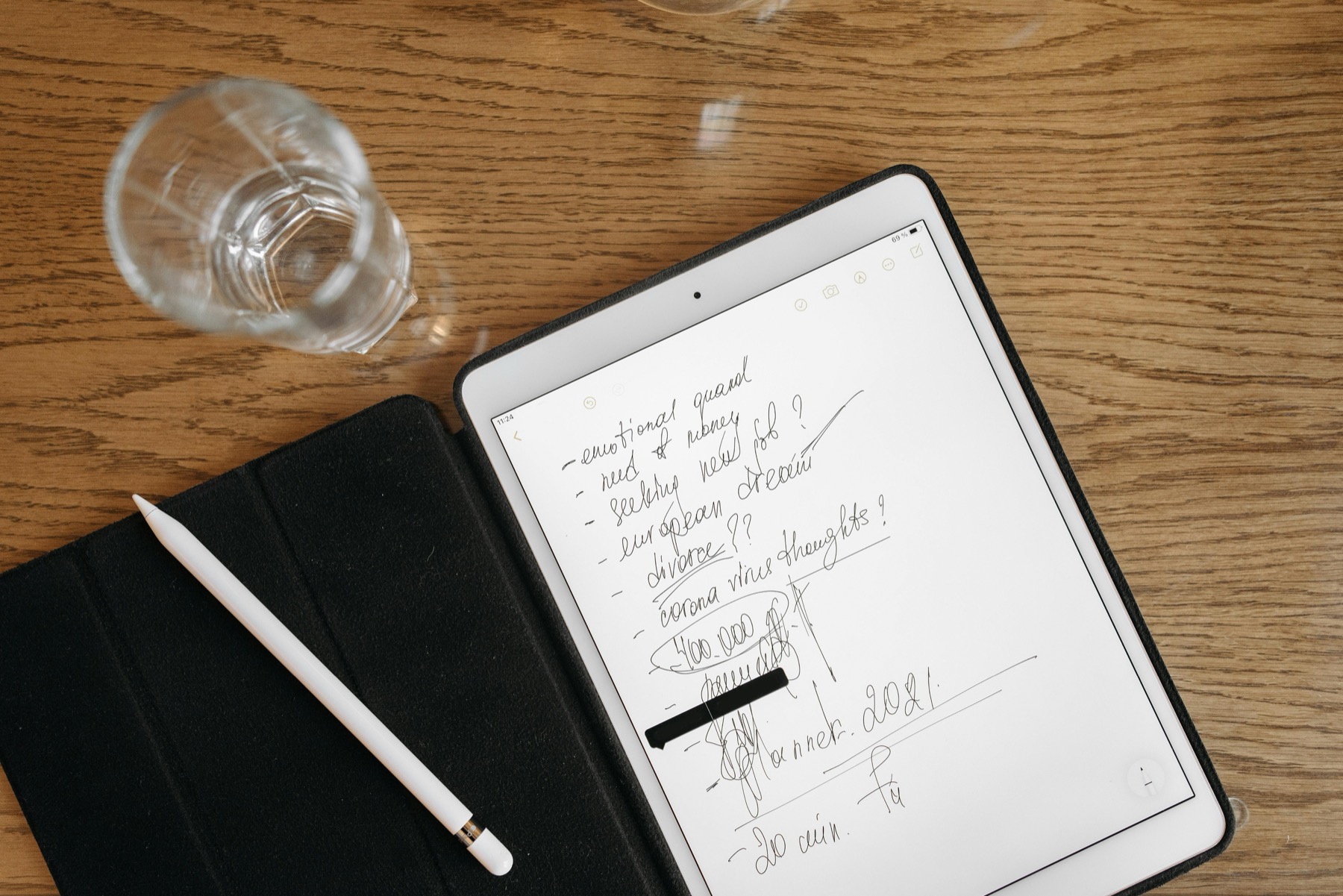
Photo by Mikhail Nilov on Pexels.
A digital planner can work very well in Notability if the file is clean, the tab structure is obvious, and your setup stays simple enough to repeat every week.
Why plan in Notability at all
Goodnotes gets more attention in digital planner conversations, but Notability is a completely reasonable choice for many users. If you already use it for lecture notes, client calls, coaching notes, or study material, keeping your planner in the same environment can reduce a lot of context switching. Your schedule, tasks, and related notes stay close together instead of being split across multiple apps.
That does not mean every planner works well in Notability. The file still needs clean structure, linked navigation, and enough writing space to feel calm inside a note-taking app. When those pieces are in place, Notability can support a strong planner workflow that is practical rather than decorative.
Step 1: import the right kind of planner PDF
Most digital planners arrive as PDFs, which means the first step is simply importing the file into Notability. The more important issue is the file you choose. A well-designed planner should feel like it belongs in a digital app. Tabs should be obvious, page types should have clear jobs, and the layout should not feel cramped once you start writing on it.
PlannerPier products such as the Simple Undated Digital Planner, the Kawaii Cat Digital Planner 2026, and the Budget Planner are structured to feel readable and usable inside tablet note-taking workflows. That makes the import step only the beginning instead of the high point of the experience.
Product spotlight
A stronger planner-plus-notes workflow
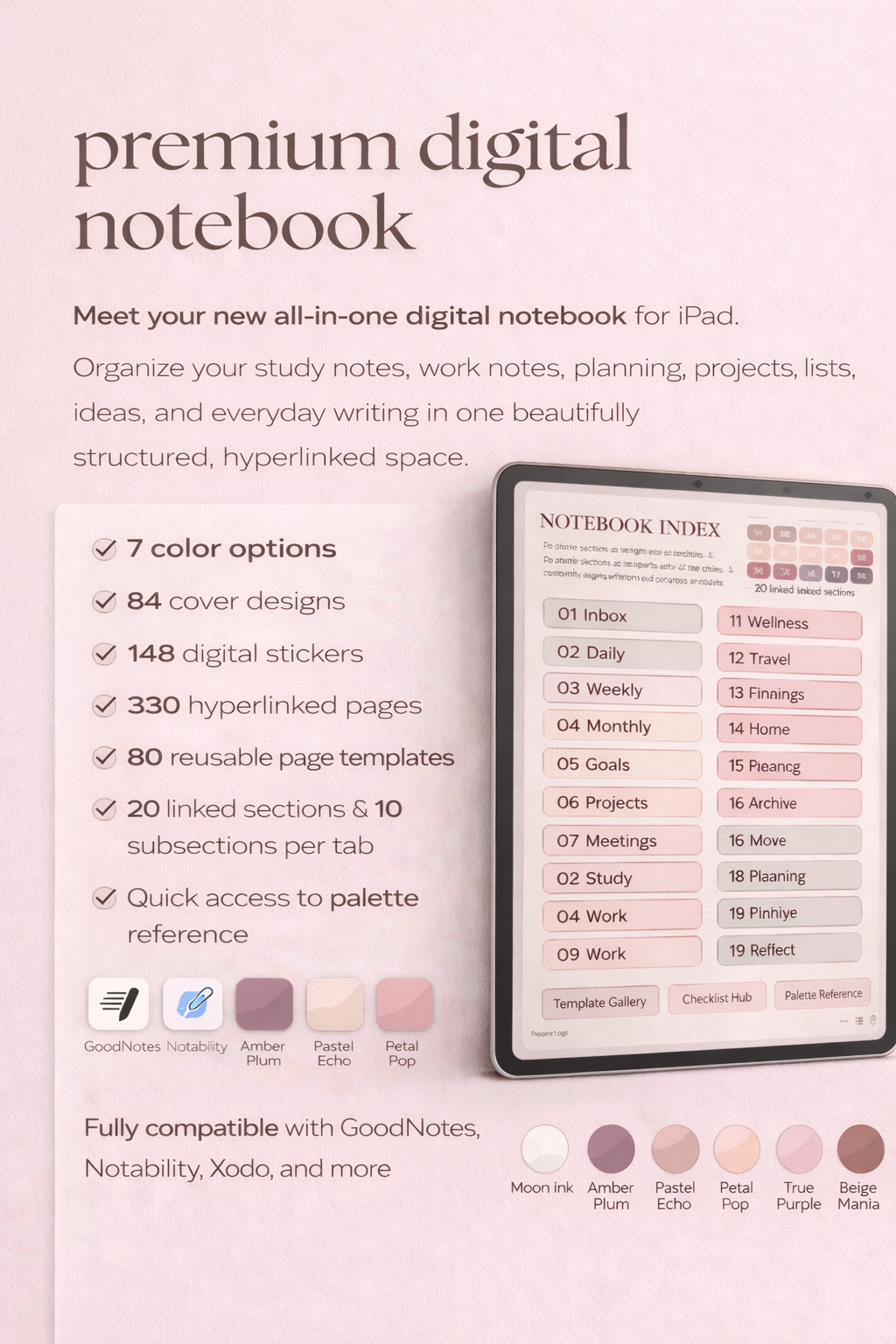
If your planner needs to live beside study notes, meeting notes, or project pages, PlannerPier's Digital Notebook adds linked structure without cluttering the planner itself.
- check_circleUseful for note-heavy iPad workflows
- check_circle20 tabs and multiple templates for supporting material
- check_circlePairs naturally with a Notability planning routine
Step 2: learn the tabs before you try to plan under pressure
A hyperlinked planner saves time only if you know where its anchors are. Before you start filling out pages, spend a few minutes tapping between the dashboard, monthly pages, weekly sections, notes areas, and any extra categories. Learn how the file wants to be used. That small orientation step prevents a lot of frustration later.
This matters because beginners often try to write immediately and only discover the navigation logic when they are already rushing through the day. The more familiar you are with the tab structure, the more useful the planner becomes in real moments. That is when the file starts to feel like a workspace instead of just an imported PDF.
- arrow_right_altTest the dashboard, monthly tabs, weekly tabs, and notes sections first.
- arrow_right_altNotice which pages will become your repeatable anchors each week.
- arrow_right_altTreat navigation as part of setup, not as a detail you will figure out later.
Step 3: build the smallest workable planning routine
The biggest beginner mistake is trying to use every section on day one. If your planner includes goals, trackers, daily pages, notes, budgeting, and stickers, it is easy to turn setup into a side project. A better method is to start with the minimum system that would still help you this week: one monthly overview, one weekly page, one daily page for heavier days, and one notes page for overflow thinking.
That gives your planner a practical role immediately. Once you feel the rhythm of returning to it, you can expand into more sections. This is how a digital planner becomes sustainable. The routine grows from use, not from ambition.
Step 4: keep planning separate from storage
A planner is for decisions. A notebook is for storage. That distinction matters in Notability because the app often becomes a home for lots of information. If you try to make the planner hold every piece of reference material, it gets bloated quickly. A cleaner system uses the planner for current priorities, dates, and daily decisions, while a notebook holds project notes, research, lists, and supporting context.
That is why pairing a planner with the Digital Notebook for iPad & GoodNotes can work so well, even if you prefer Notability. The notebook gives you a structured place for notes, while the planner stays focused on timing and action. Together they create a calmer tablet workflow.
Step 5: use the planner for decisions, not decoration
Digital planning becomes powerful when it helps you decide what matters. It becomes exhausting when it turns into endless visual setup. That does not mean you cannot enjoy stickers, color coding, or cleaner handwriting. It means those extras should support clarity rather than replace it. Ask which pages you actually return to and which ones only make the planner slower to use.
When you keep that mindset, Notability can become a very effective planning environment, especially if your notes and action items already live there. The goal is not to use every feature. The goal is to make the next week feel easier to navigate.
Frequently asked questions
Can you use a digital planner in Notability?
Yes. Notability supports PDF planners well, especially when the file has clean hyperlinks and you keep the setup simple.
Do hyperlinks work in Notability planners?
Yes, a well-built hyperlinked planner can make navigation much easier in Notability by reducing scrolling between sections.
What is the best Notability planner setup for beginners?
Start with one monthly page, one weekly page, one optional daily page, and one notes page. Expand only after that routine feels easy.
Which PlannerPier product fits Notability users best?
The Simple Undated Digital Planner is a strong first choice, and the Digital Notebook is helpful if you want more space for notes and reference pages.
Set up a Notability planner you can keep using
If you want a digital planner and notebook system that feels natural in note-taking apps, explore PlannerPier's linked planners and iPad-ready notebooks.