GoodNotes Digital Planner Backup and File Organization: How to Keep Your Planner Safe, Findable, and Easy to Reuse
Learn how to organize and back up GoodNotes digital planners, PDF templates, stickers, trackers, exports, and PlannerPier files without losing your setup.
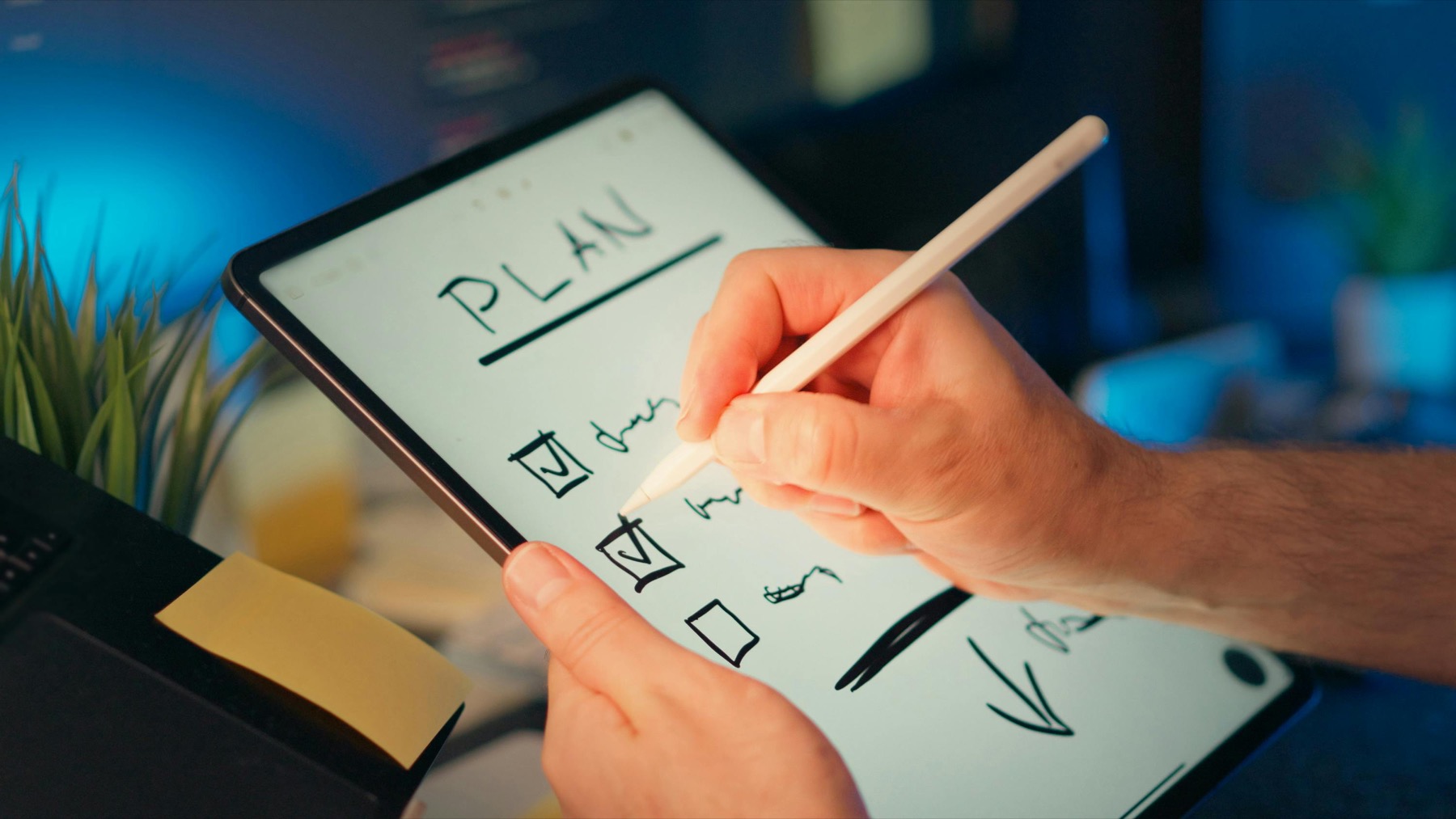
Photo by Ivan Samkov on Pexels.
A digital planner is only useful if you can find it, back it up, update it, and reuse the right version without rebuilding your whole system.
Check your file before reuse
Run a PDF quality check before importing again
Use PlannerPier's GoodNotes PDF Checker to review links, page order, and file comfort before turning an export into your active planner.
Open GoodNotes PDF CheckerThe hidden problem with digital planning is file drift
Most digital planner advice focuses on layouts, stickers, and apps. File organization gets ignored until something goes wrong. Then you have three planner copies, two exported PDFs, a sticker folder, a backup you do not trust, and no idea which version contains last month's notes.
This problem is file drift. It happens when planners, templates, exports, backups, and experiments spread across GoodNotes, Files, iCloud Drive, downloads, email attachments, and random folders. Digital planning is flexible, but without a simple system, that flexibility turns into confusion.
A backup and organization routine does not need to be complicated. It needs to make your active planner safe, your templates findable, your stickers reusable, and your old planners archived. Once that foundation exists, you can use PlannerPier tools more confidently because every generated page has a clear destination.
Separate active files from source files
Your active planner is the file you write in every week. Your source files are the original PDFs, templates, sticker sheets, covers, and generated pages that you may reuse later. Mixing these together makes it easier to accidentally write in the wrong copy or delete the file you needed.
Create one folder for active planners and one folder for source files. The active folder should be small. It might contain this year's main planner, a current business planner, and one active notebook. The source folder can hold purchased products, PlannerPier exports, stickers, trackers, and unused templates.
For example, keep Simple Undated Digital Planner as an original source PDF in one folder, then import or duplicate a working copy for daily use. This preserves a clean version if you want to restart later.
- arrow_right_altActive files are the planners you write in now.
- arrow_right_altSource files are clean originals and reusable templates.
- arrow_right_altArchives are completed planners you want to keep but no longer edit.
Product spotlight
A cleaner home for notes beside your planner
PlannerPier's Digital Notebook for iPad & GoodNotes helps keep project notes, reference pages, and reusable planning context organized outside the active planner file.
- check_circleUseful for separating notes from the main planner
- check_circleHelps reduce file clutter inside active weekly planning
- check_circlePairs well with stickers, trackers, and PlannerPier exports
Use names that tell the truth
File names should answer three questions: what is it, when is it for, and what version is it? Names like planner.pdf, new-planner-final.pdf, and copy-2.pdf do not help when you are tired or switching devices. Use names that stay useful months later.
A better naming pattern is year-purpose-version. For example: 2026-main-planner-v1.pdf, 2026-business-planner-active, 2026-budget-tracker-q2.pdf, planner-icons-source.zip, and april-weekly-test.pdf. If you export a backup, add the date: 2026-main-planner-backup-2026-04-22.pdf.
This is especially helpful when using PlannerPier's Planner Assembler. Assembled PDFs can multiply quickly, so name them by purpose before importing them into GoodNotes.
Create a GoodNotes library structure that mirrors real use
Inside GoodNotes, organize by how you work, not by where files came from. Useful folders might be Active Planning, Business, Study, Wellness, Templates, Stickers, and Archive. Keep the active planning folder at the top so you do not hunt for the planner every morning.
Avoid creating too many folders at first. A complicated library structure becomes another maintenance task. Start with a few obvious categories, then add more only when the current folders feel crowded.
If you use PlannerPier's Digital Notebook for iPad & GoodNotes, place it near the planner it supports. A notebook for client notes should live near the business planner. A notebook for study notes should live near the student planner.
Back up before major changes, not after something breaks
Create a backup before you make big changes. Big changes include importing a new planner, assembling PDFs, adding many pages, moving sections, deleting old pages, or switching apps. A backup made after something breaks is only a record of the problem.
The simplest backup routine is manual and predictable. At the end of each week or before a major edit, export the active planner as a PDF or GoodNotes backup if available, save it to cloud storage, and include the date in the file name. Keep only the backups you would realistically restore.
If your planner contains important business, school, wellness, or finance information, treat backups as part of the planning habit. You do not need to obsess over it, but you do need a repeatable path.
Keep stickers in a reusable system
Sticker organization matters because sticker clutter can slow digital planning. Keep source sticker files in a folder outside the active planner. Inside GoodNotes, create one sticker notebook or sticker page with your most-used icons and labels.
Separate functional stickers from decorative stickers if that helps. Functional stickers include priorities, deadlines, calls, bills, workouts, study, meals, and review markers. Decorative stickers include mood accents, seasonal art, and cute extras. Both can be useful, but they serve different jobs.
PlannerPier sticker products such as Planner Icons Digital Stickers and Cute Daily Life Digital Planner Stickers work best when they are organized into a small reusable set rather than scattered across multiple downloads.
Archive finished months without losing useful history
A planner archive lets you keep history without crowding the active file. At the end of a month, quarter, semester, or year, export a copy and move it to an archive folder. Keep the active planner focused on what you still use.
Archives are useful for reviewing patterns. You may want to look back at migraine triggers, spending cycles, study routines, project timelines, or completed goals. But you do not need every old page in the same active file forever.
PlannerPier's tracker products, including the Migraine Tracker Log Book, become more valuable when archived cleanly. Patterns are easier to notice when the files are named and stored consistently.
Protect custom PlannerPier exports
PlannerPier tools can generate pages and PDFs that you may want to reuse: weekly planners, daily pages, budget pages, gratitude journals, trackers, assembled planners, and tabs. Treat these exports like building blocks. Save the clean output before you write on it.
A useful folder structure is PlannerPier Exports, with subfolders for Weekly, Daily, Trackers, Budget, Assembled, Stickers, and Tests. This lets you find the original generated page when you want to build a new planner version later.
If you use Premium or saved setups in the future, this habit becomes even more valuable. A planner platform works best when your projects, exports, and preferences are treated as reusable assets rather than one-time downloads.
Use a monthly file review to remove friction
Once a month, spend ten minutes reviewing your planner files. Delete failed experiments, rename vague exports, move completed files to archive, and confirm the active planner has a recent backup. This short review prevents file drift from becoming a bigger cleanup.
Ask simple questions: Which planner am I actually using? Which files are clean templates? Which exports should be saved? Which copies can be deleted? Which stickers do I use every week? Which folder is becoming messy?
This is not busywork. It keeps your planning system trustworthy. If you can find the right file quickly, you are more likely to open the planner when life gets busy.
A safe planner is easier to keep using
Good digital planning is not only about beautiful pages. It is about trust. You need to trust that your planner will open, your links will work, your files are backed up, and your clean templates are still available when you want to restart.
Competitor content often emphasizes best planners, pretty templates, and sticker collections. Those are useful, but PlannerPier can go deeper by helping users build a maintainable workflow: create pages, assemble planners, test PDFs, organize exports, and keep the system usable.
PlannerPier ürünlerini ve araçlarını keşfetmek için ziyaret et: https://www.plannerpier.com/. A planner that is safe, findable, and easy to reuse will serve you longer than a beautiful file you are afraid to edit.
Frequently asked questions
How should I organize GoodNotes digital planner files?
Separate active planners, clean source files, stickers, generated pages, backups, and archives. Use clear file names with year, purpose, version, and backup date.
How often should I back up my digital planner?
Back up before major edits and on a regular schedule such as weekly or monthly, depending on how important the planner information is.
Where should I keep digital planner stickers?
Keep source sticker files in a dedicated folder and maintain a small reusable sticker page or notebook inside GoodNotes for the stickers you use often.
How do I avoid using the wrong planner version?
Use clear file names, keep one active planner folder, archive old versions, and save clean originals separately from files you write in.
Keep your digital planner safe and reusable
Use PlannerPier tools and products to create planner files that are easier to organize, back up, assemble, and keep using.