How to Use a Digital Planner in GoodNotes: A Step-by-Step Setup That Actually Sticks
Set up a digital planner in GoodNotes the right way with a simple workflow for importing PDFs, using hyperlinks, creating a weekly routine, and choosing the best planner layout.
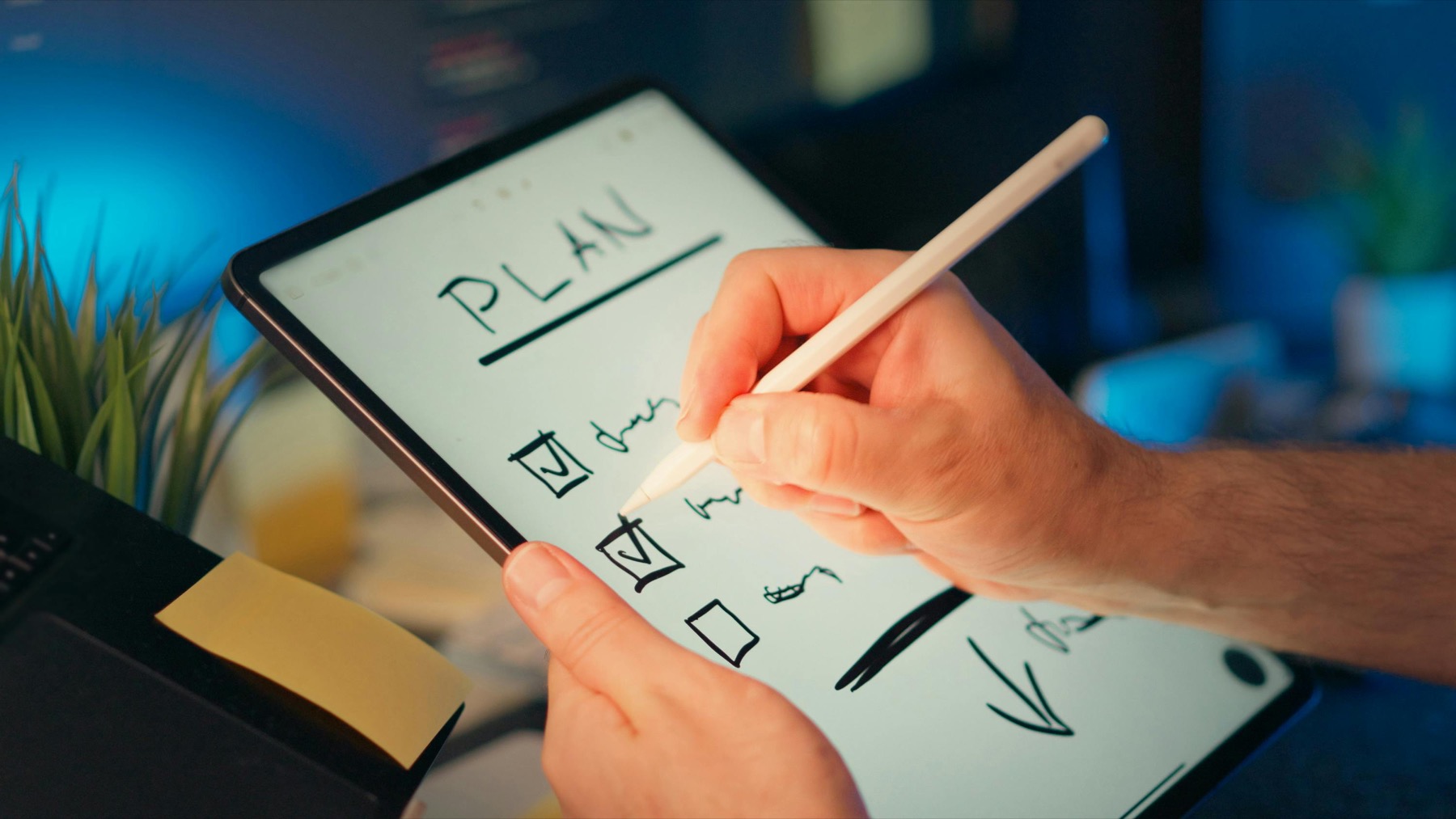
Photo by Jakub Zerdzicki on Pexels.
GoodNotes becomes much easier when you stop trying to build the perfect planner setup and start building a repeatable one that helps you open your week with less friction.
Need smoother navigation?
Use the GoodNotes Tabs Generator to build cleaner linked sections
PlannerPier's GoodNotes Tabs Generator helps you create clearer tabs and a more polished navigation system for notebooks, planners, and custom sections.
Open Tabs GeneratorWhy GoodNotes is such a popular home for digital planners
GoodNotes is popular with digital planner users because it feels close to handwriting on paper while still supporting the speed advantages people want from a tablet workflow. You can import PDF planners, use internal hyperlinks, duplicate pages, move around your library easily, and keep notebooks and planners inside the same broad workspace. That makes it ideal for users who want the comfort of writing by hand without giving up portability and organization.
It is also one of the most searched digital planning ecosystems, which means many readers arriving from Google already have GoodNotes installed or are thinking about it. That search intent matters. They are rarely looking for abstract productivity advice. They want to know how to make their planner work inside the app without breaking tabs, losing pages, or overcomplicating the setup. A strong article should answer those practical questions directly.
Step 1: Choose the right planner PDF before importing anything
A lot of GoodNotes frustration starts before the file is even imported. If the planner has weak navigation, tiny writing boxes, or too many sections that do not match your life, the app gets blamed for layout problems it did not create. That is why your first decision should be about the planner structure, not pen tools or templates.
If you want a flexible everyday system, the Simple Undated Digital Planner is a good place to begin because it is easier to restart and simpler to navigate. If you already know you want a broader toolkit with matching extras and more depth, the Ultimate Planner Bundle offers a larger ecosystem. The best choice depends on how much structure you can realistically maintain each week.
- arrow_right_altPick a planner that matches your routine before customizing anything.
- arrow_right_altUse undated layouts when you want flexibility and lower pressure.
- arrow_right_altAvoid oversized all-in-one planners if you are still learning your rhythm.
Product spotlight
GoodNotes works best when your planner and notes support each other
PlannerPier's Digital Notebook for iPad & GoodNotes pairs well with a planner because it gives project notes, reading notes, and reference pages a dedicated place without cluttering your weekly spread.
- check_circleSeparate planning from deeper notes without losing one central system
- check_circleKeep related project pages close to your planner workflow
- check_circleBuild a cleaner GoodNotes library over time
Step 2: Import the planner correctly and test the tabs immediately
Once you download your planner PDF, import it into GoodNotes and test the navigation before you start writing. Tap through the monthly, weekly, and notes sections. Check that hyperlinks are landing where you expect. If something feels confusing now, it will feel worse once your planner is full of active pages and unfinished tasks.
This step sounds basic, but many competing tutorials gloss over it too quickly. The first few minutes determine whether the planner feels smooth or annoying. Test it while the file is empty. If you also want to improve navigation inside notebooks or custom sections, PlannerPier's GoodNotes Tabs Generator can help create cleaner structure for linked planning and reference pages.
Step 3: Build a minimum viable weekly system
A GoodNotes planner gets sticky when you can answer the same planning questions in the same place every week. What matters this week? What is scheduled? What can wait? What needs to be captured before it disappears? You do not need a fully aesthetic dashboard to answer those well. You need a dependable sequence.
Start with one weekly spread, one notes page for mental clutter, and one optional daily page for higher-focus days. That alone is enough for many people. The planner becomes easier to maintain because you are not switching between too many sections. Over time, you can layer in habit tracking, meal planning, budgeting, or journaling only if those additions genuinely reduce friction in your week.
Step 4: Use GoodNotes features that save time, not just the pretty ones
The most useful GoodNotes features for planners are the ones that reduce rework. Search helps you find old notes and recurring lists. Duplicate pages help you preserve layouts that already work. Folder organization helps separate work, personal planning, school, or wellness flows. These are not flashy features, but they matter more than decorative choices if your goal is long-term consistency.
This is also where the right supporting products matter. If your planner routine includes deeper writing, reading notes, or project mapping, the Digital Notebook for iPad & GoodNotes can support your main planner without forcing everything into one file. Used together well, a planner and notebook create a system that feels organized instead of cramped.
Step 5: Create a five-minute daily and ten-minute weekly habit
Most people do not fail at GoodNotes because the app is hard. They fail because the planner never becomes attached to a repeatable moment in the day. Planning works best when it is anchored. A short morning review, a Sunday evening reset, or an after-lunch task sort can be enough. The point is not perfection. The point is making the planner the place you return to before your attention scatters.
If your routine feels too heavy, remove complexity before buying more templates. Shrink the number of sections you rely on. Use fewer categories. Make your weekly spread do more of the work. A sustainable system is better than an impressive one. That principle is especially important for beginners who want GoodNotes to feel supportive instead of demanding.
How PlannerPier can help beyond a single planner file
One weakness in many GoodNotes articles is that they stop at setup. Real users need more than setup. They need a way to choose the right planner, improve the layout when their routine changes, and add extras without starting from zero. PlannerPier's tool ecosystem fills that gap. A user can start with education, test fit, improve tabs, and then expand into more specialized planners if their workflow calls for it.
That makes product references feel natural instead of pushy. The Simple Undated Digital Planner helps reduce initial overwhelm. The Digital Notebook for iPad & GoodNotes adds structured note space. The Ultimate Planner Bundle gives heavier planners a more complete ecosystem. Each product solves a different stage of planning maturity.
Frequently asked questions
Can I use a PDF digital planner in GoodNotes?
Yes. Most digital planners for iPad are delivered as PDF files and imported directly into GoodNotes for linked navigation and handwriting.
Why are hyperlinks important in a GoodNotes planner?
Hyperlinks let you jump between yearly, monthly, weekly, daily, and notes sections quickly so large planners feel usable instead of slow to navigate.
What is the best digital planner for GoodNotes beginners?
A clean planner with simple navigation and enough weekly writing space is usually best. Many beginners do better with an undated planner before moving into larger systems.
Make GoodNotes easier to return to by choosing a planner that supports your real week
Daha düzenli bir dijital planlama sistemi için PlannerPier ürünlerine göz atabilirsin: https://www.plannerpier.com/