Notability Digital Planner Setup for Beginners: How to Keep Notes and Planning Together
Set up a digital planner in Notability with a beginner-friendly workflow for meetings, lectures, weekly planning, and linked notes on iPad.
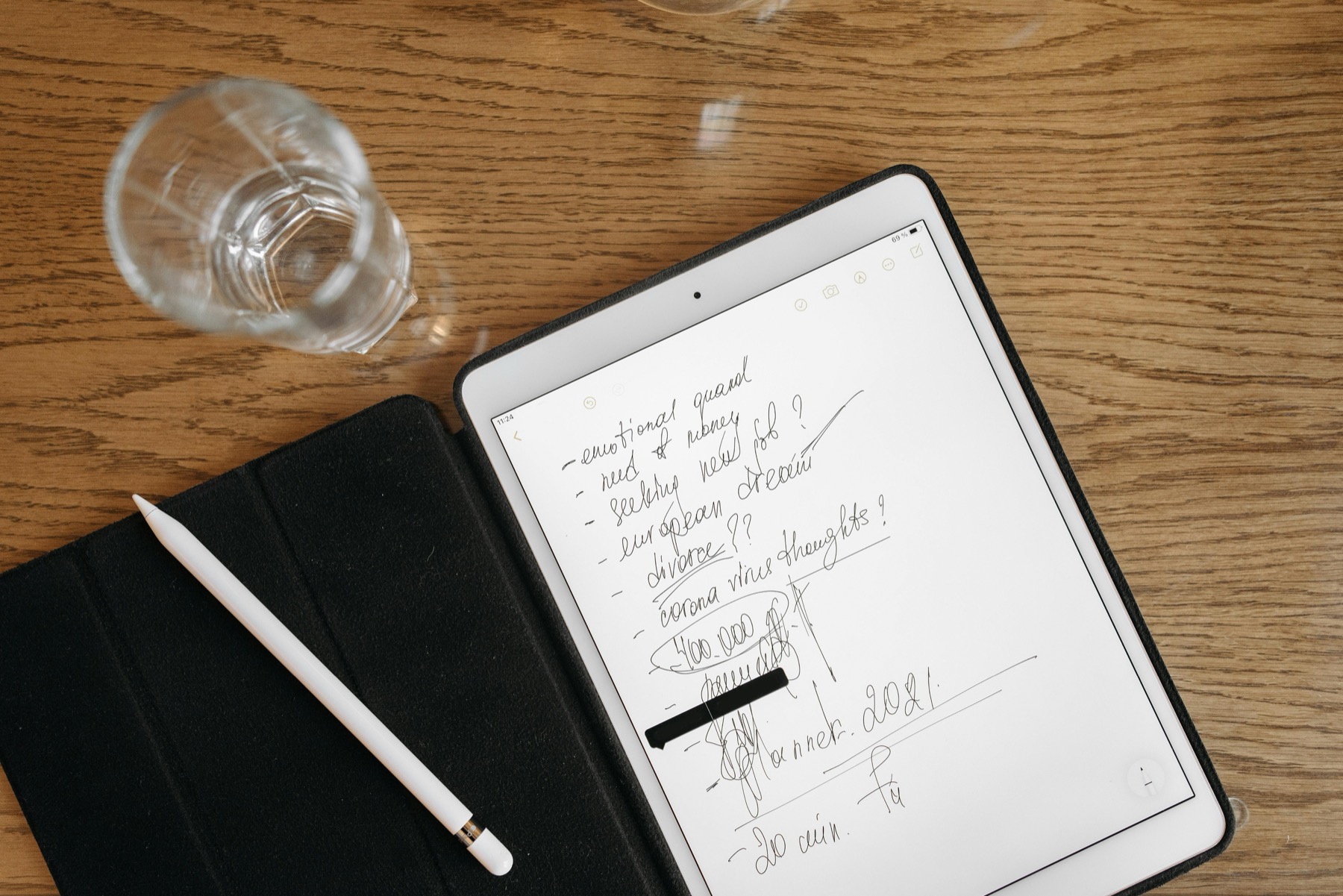
Photo by Mikhail Nilov on Pexels.
Notability becomes a strong digital planner app when you stop expecting it to behave exactly like Goodnotes and start using it for what it does best: keeping notes, recordings, and weekly decisions close together.
Unsure which planner style fits your app workflow?
Use the planner finder before you buy the wrong layout
PlannerPier's Find Your Planner tool helps new buyers narrow their best fit based on planning style, note habits, and routine needs.
Open Find Your PlannerWhy some beginners choose Notability over Goodnotes
Goodnotes usually gets most of the attention in digital planning conversations, but Notability solves a different and very real problem. For many users, planning does not happen in isolation. It happens next to meetings, lectures, coaching calls, brainstorming sessions, and ongoing note capture. In that context, a planner app that sits close to written notes and recordings can feel more practical than one designed around a planner-first library.
That is why a beginner searching for a Notability planner is often not only comparing apps. They are trying to figure out how to keep planning and context together. If your week is shaped by what happens in calls, class, or client conversations, a notes-plus-planner workflow can be far more sustainable than a planner that lives in a separate universe.
What kind of planner works best inside Notability
Notability users tend to do best with a clean, hyperlinked planner that does not rely on heavy decoration or endless inserts. The goal is quick navigation, enough notes space, and a visual structure that still feels readable when your planner sits near subjects, dividers, and active notes. A planner with too many niche inserts can create friction because it asks the user to maintain several planning rituals at once.
That is why products like the Simple Undated Digital Planner work well for Notability users. The layout is simple enough to coexist with note-heavy workflows, and the undated structure adds flexibility if your weeks are driven by changing class schedules, project phases, or meetings. If you want a more expressive annual feel, the Kawaii Cat Digital Planner 2026 can also work, but clarity should stay the first filter.
- arrow_right_altChoose a planner with clear links and low visual clutter.
- arrow_right_altPrefer note-friendly weekly pages over highly decorative layouts.
- arrow_right_altAvoid overloading your first Notability setup with too many inserts.
Product spotlight
A clean planner that fits note-heavy iPad routines
PlannerPier's Simple Undated Digital Planner is especially useful for Notability beginners who want flexible weekly structure without a visually crowded setup.
- check_circleStrong fit for meetings, lectures, coaching notes, and project-based weeks
- check_circleUndated layout makes changing schedules easier to manage
- check_circlePairs well with a broader notes-first workflow
How to structure Notability so planning and notes support each other
A useful setup begins by deciding what belongs in the planner and what belongs in separate notes. The planner should hold time-based decisions: appointments, deadlines, weekly priorities, and follow-up tasks. Your notes should hold lecture details, meeting content, reference ideas, brainstorms, and recordings. When those two layers are connected mentally, you stop asking the planner to carry everything.
This division also improves review. At the end of the week, you can scan your planner for unfinished items and then jump into the supporting notes that explain what those items mean. That is much stronger than storing random note fragments across planner pages, where they eventually crowd out what the week actually needs from you.
A simple Notability workflow for students, freelancers, and managers
Students can use the planner for class deadlines, study sessions, and exam countdowns while keeping lecture notes and reading summaries in subject folders. Freelancers can use the planner for delivery dates, client priorities, and admin blocks while keeping project notes and call summaries in separate note areas. Managers can use the planner for weekly priorities and follow-ups while storing meeting notes, action lists, and strategic thinking nearby.
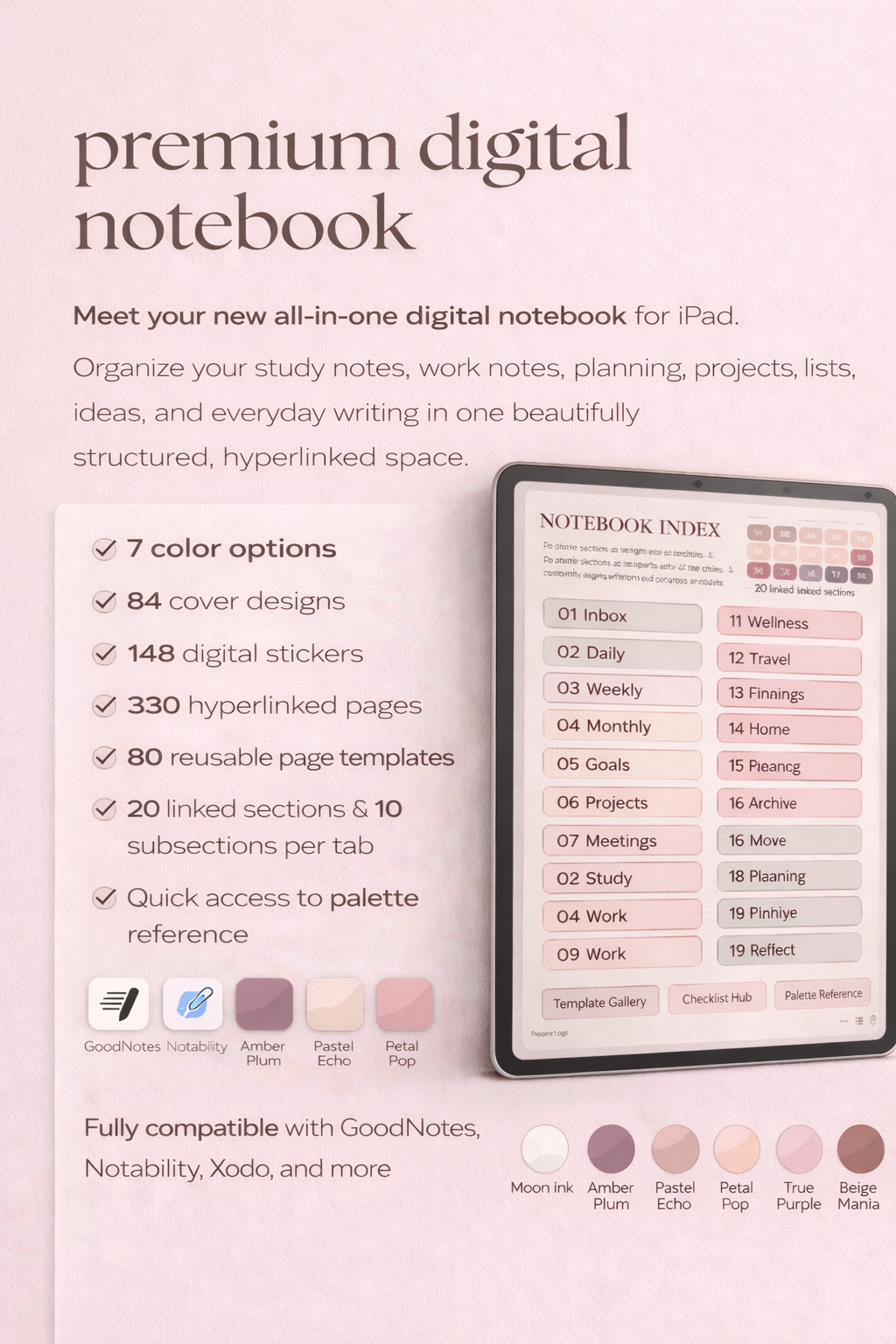
The point is not to force every user into the same structure. The point is to make sure the planner is handling the week and the notes are handling the context. That is also where the Digital Notebook for Goodnotes becomes relevant even for cross-app shoppers, because it reflects a broader system idea: deeper notes need their own organized home rather than leaking into the planner itself.
The beginner mistake: copying aesthetic planner routines from other apps
One of the easiest ways to make Notability feel awkward is to import someone else's heavily stylized planner routine and expect it to fit instantly. Sticker-heavy dashboards, complex cover systems, and endless inserts can look inspiring online, but they are often built for content creation as much as for real planning. Beginners then spend more time recreating a look than building a usable system.
A better approach is to treat Notability like a working environment. Start with one weekly spread, one monthly view, one note capture habit, and one review block. If that system stays useful for three or four weeks, add more layers carefully. This creates a more honest workflow and a better customer experience after purchase.
How to keep the setup usable after the first two weeks
The real test of a Notability planner is not whether it feels exciting on import day. It is whether you can still find what you need in the middle of a crowded week. That is why maintenance habits matter. Give active notes consistent titles, keep subjects broad enough that you can navigate them quickly, and review unfinished planner tasks before opening a fresh week. Small maintenance habits protect the system from turning into a pile of almost-useful documents.
This is also where beginner-focused SEO content can outperform competitor listicles. Many articles explain how to start, but not how to keep the setup stable once the semester, workload, or client calendar gets messy. PlannerPier can own that gap by teaching a realistic maintenance rhythm that makes the planner feel dependable after the novelty phase passes.
Where PlannerPier fits in a Notability workflow
PlannerPier does not need to pretend every buyer is a Goodnotes buyer. There is real SEO value in serving Notability users directly, especially because many competitor articles mention the app but do not teach a notes-first setup clearly. PlannerPier can out-position them by explaining the workflow difference and then recommending a cleaner product stack that feels realistic inside Notability.
That stack may start with the Simple Undated Digital Planner, expand into a notebook when notes volume grows, and eventually include tool-based support like PlannerPier's [Student Planner](/tools/student-planner) or [Find Your Planner](/tools/find-your-planner). The article becomes commercially useful without sounding like a generic app comparison piece.
Frequently asked questions
Can you use a digital planner in Notability?
Yes. Notability works well for digital planning when you want your weekly plan to sit close to lecture notes, meeting notes, or recorded context on iPad.
What is the best planner style for Notability beginners?
A clean, hyperlinked planner with low visual clutter is usually the best starting point because it leaves room for the note-heavy parts of a Notability workflow.
Should planning and notes live in the same Notability file?
Usually no. Let the planner hold time-based decisions and keep deeper notes in separate organized areas so the weekly pages stay readable.
Build a Notability planning workflow that keeps your week and your notes connected
Explore PlannerPier at https://www.plannerpier.com/ if you want digital planners and support tools that work for note-heavy iPad routines without unnecessary complexity.