How to Use a Digital Planner on iPad: A Beginner Setup That Actually Sticks
A practical beginner guide to using a digital planner on iPad with Goodnotes or Notability, including setup, hyperlinks, weekly planning, and mistakes to avoid.
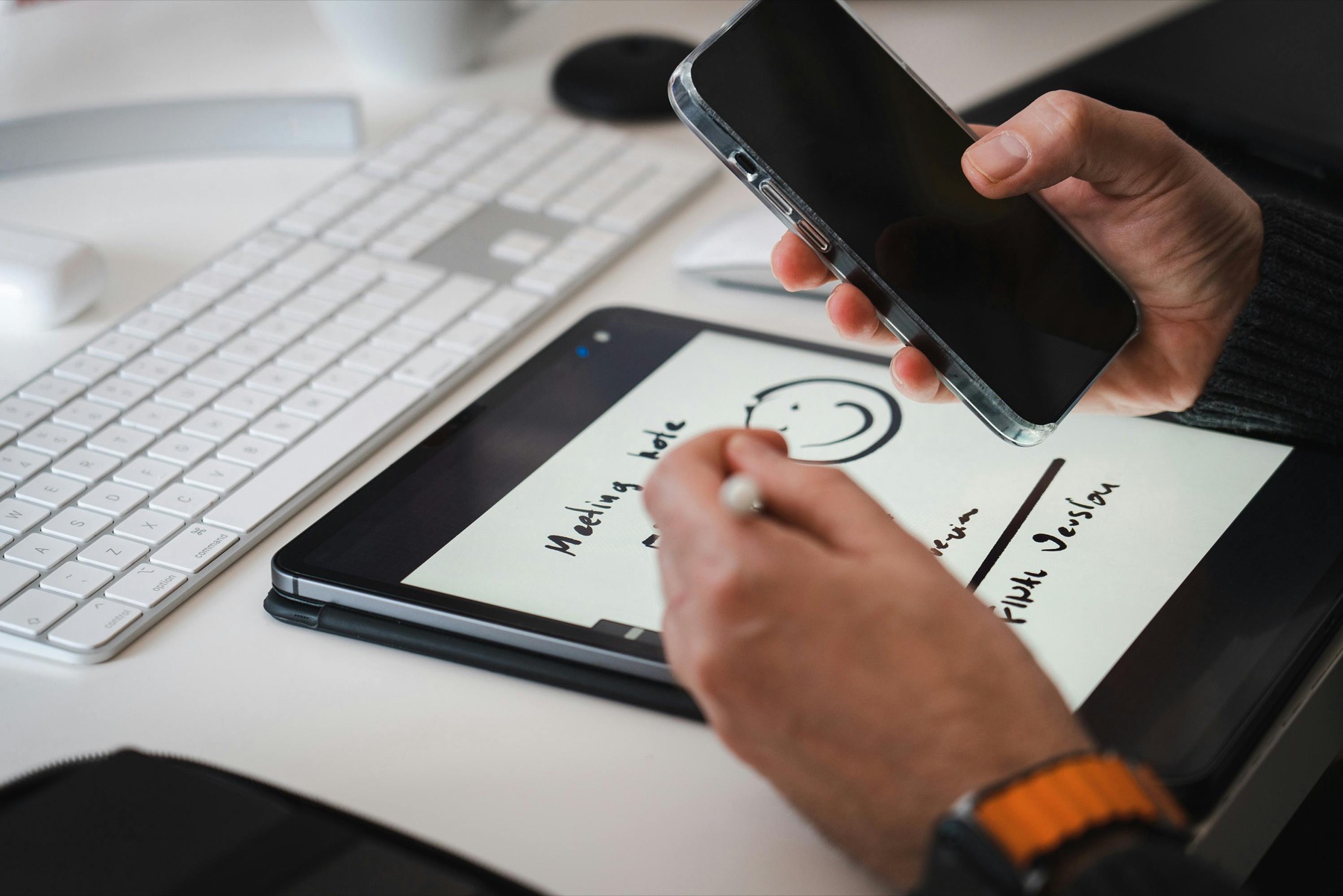
Photo by Jakub Zerdzicki on Pexels.
A digital planner becomes useful the moment it reduces friction in your week. The goal is not to build a perfect tablet aesthetic. The goal is to make planning easier to repeat.
Want to test the workflow first?
Try a free weekly page before choosing a full planner
PlannerPier's Weekly Planner Maker lets you practice the rhythm of digital planning before you settle on a longer-format planner.
Open Weekly Planner MakerWhat a digital planner on iPad actually is
A digital planner is usually a PDF file designed to be opened inside a note-taking app such as Goodnotes or Notability. Instead of flipping physical paper pages, you tap hyperlinked tabs, write with Apple Pencil, and keep your calendar, tasks, notes, and trackers in one tablet-based system. The experience feels closer to a clickable binder than to a standard calendar app.
That distinction matters because beginners often expect a digital planner to behave like software with buttons and automation. In reality, the planner gives you structure while the app gives you the writing and navigation environment. Once you understand that relationship, the setup process becomes much less intimidating.
Choose the app before you choose the planner style
If you are brand new, choose your app first. Goodnotes is usually the easiest recommendation when your planner depends on linked tabs and fast movement across months, weeks, and notes. Goodnotes support docs clearly explain how PDF hyperlinks work, which is one reason digital planners feel natural there. Notability also supports importing planners and can be a better fit if you want your planner living beside lecture notes, meeting notes, and audio recordings.
The key is to avoid changing too many variables at once. Pick one app, commit to learning it for a week, and then test planner styles inside that environment. Most frustration comes from mixing a new app, a new planner format, and an unrealistic planning method all at the same time.
- arrow_right_altChoose Goodnotes first if you want a classic hyperlinked planner workflow.
- arrow_right_altChoose Notability if your planning lives next to notes, recordings, or class review.
- arrow_right_altDo not buy multiple planners before you know how you want to use one.
Product spotlight
A simple first planner that helps beginners start quickly
PlannerPier's 2026 Free Simple Planner gives new digital planners a clean weekly structure, hyperlinked navigation, and a lower-pressure way to test iPad planning.
- check_circleUseful for Goodnotes, Notability, and other PDF apps
- check_circleClean visual design with low friction for first-time users
- check_circleA strong entry point before moving into more specialized planners
Import the file cleanly and test the navigation first
After downloading your planner PDF, import it into your chosen app before doing anything decorative. In Goodnotes, this means bringing the PDF into your library and testing whether tabs move you to the right pages. In Notability, support documentation also explains importing external planners and files, so the setup is still straightforward if that is your chosen app.
Your first test should be practical. Can you open the month view quickly? Can you jump to a weekly page? Does handwriting feel readable at your normal zoom? If the answer is yes, the planner is already doing its job. Stickers, covers, and color coding can wait until the basic workflow feels easy.
Build a minimum viable planning routine
Beginners often overload their first planner by trying to use every insert right away. A better approach is to create a minimum viable routine. Use one weekly spread for appointments and commitments, one daily page for focused priorities, and one spare notes page for brain dumps. That is enough to get real value fast.
This is one reason beginner-friendly products like the 2026 Free Simple Planner and the Simple Undated Digital Planner are strategically useful. They make it easier to practice the habit before you start optimizing the aesthetic.

Use hyperlinks the way they were intended
Hyperlinks are one of the biggest reasons digital planning saves time. Instead of endlessly scrolling, you tap directly to the month, week, or note section you need. Goodnotes explicitly documents that PDF hyperlinks work inside imported files, which is exactly how planner tabs function. If you are not using those links, you are missing one of the main benefits of the format.
New users sometimes zoom around randomly or flip page by page because that feels familiar from paper. Try the opposite. Let the planner's structure do the work. Open the dashboard, tap into the week, then jump back out. Once that navigation pattern becomes muscle memory, digital planning starts to feel smooth instead of technical.
Common beginner mistakes that make people quit
The first mistake is buying a beautiful planner without a clear reason for the layout. The second is customizing everything before using anything. The third is expecting the planner to fix your habits by itself. A planner is a support tool, not a personality transplant. It helps when it fits your existing life and reduces confusion.
Another common mistake is using too many planning layers at once. If you have Apple Calendar, Reminders, three notebooks, and a digital planner all competing for your attention, the problem is not the tablet. The problem is system overlap. Your planner should become the place where your week feels legible again, not just one more place to maintain.
How to make the habit stick after the first week
Give yourself two anchor moments: one short weekly planning session and one daily check-in. The weekly session is where you review deadlines, move unfinished tasks forward, and decide what success looks like for the next seven days. The daily check-in is where you choose today's top priorities before the noise of the day takes over.
If you want extra support, use a free tool such as PlannerPier's weekly or daily page builders to test page styles without overcommitting. That is a useful bridge between browsing and buying because it gives the user a small planning win early. Momentum matters more than complexity when you are just starting.
What beginners should buy first
Start with a clean planner, not the most elaborate one. A simple dated or undated planner tells you quickly whether you like weekly planning on iPad at all. Once you know that, you can expand into sticker packs, notebooks, goal sections, or more specific planners for ADHD, school, budgeting, or wellness.
That is also why PlannerPier should keep publishing beginner content. This audience is high-conversion because they are in setup mode right now. If the article answers their first practical questions and points them toward a clear next step, they are far more likely to trust the product recommendation that follows.
Frequently asked questions
What app do I need to use a digital planner on iPad?
Most digital planners are PDFs used inside apps like Goodnotes or Notability. Those apps provide writing, importing, and navigation, while the planner provides the layout.
Is Goodnotes or Notability better for beginners?
Goodnotes is usually the easier first recommendation for hyperlinked planner use, while Notability can be better when planning is closely tied to notes and recordings.
What is the easiest first digital planner to try?
A simple, low-clutter planner with clear weekly pages is usually the best first choice because it lets you learn the habit before adding extras.
Start digital planning with a layout that feels clear on day one
Explore PlannerPier's beginner-friendly digital planners and free planning tools at https://www.plannerpier.com/ if you want an easier first iPad workflow.