How to Use a Digital Planner in Notability: A Practical Workflow for Notes, Meetings, and Weekly Planning
Learn how to use a digital planner in Notability for meetings, study notes, weekly planning, and linked PDF navigation without turning your tablet into a cluttered workspace.
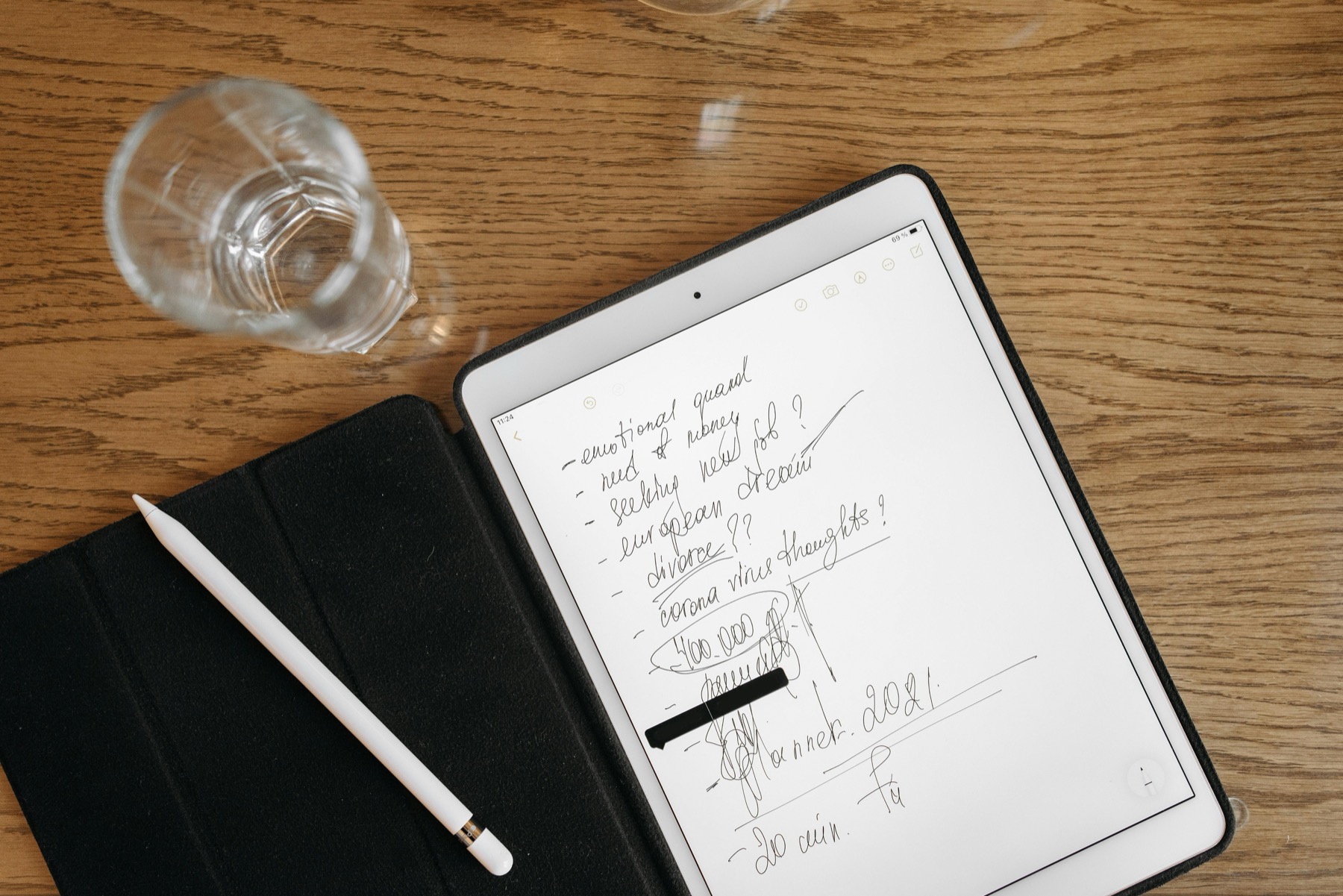
Photo by Pavel Danilyuk on Pexels.
Notability works especially well when your planning routine lives next to meeting notes, lecture summaries, and handwritten thinking that needs to stay connected to the week ahead.
Not sure which layout fits?
Take the Find Your Planner quiz before you buy another file
PlannerPier's quiz helps you narrow down your best planner style based on routine, planning friction, and how much structure you actually want to maintain.
Open the planner quizWhy some users prefer Notability for digital planning
Notability is often chosen by people whose planner is only one part of a broader note-taking routine. If your day involves meetings, classes, client calls, lecture summaries, or brainstorm pages, it can feel natural to keep planning close to the notes that explain why your tasks exist in the first place. That makes Notability especially useful for people who think through writing and need more than a task list.
This is one of the clearest gaps in many digital planner articles. They assume every user wants the same dashboard-heavy workflow. In reality, some people need a notes-plus-planner system where planning is the command center and notes are the supporting evidence. A good Notability planner strategy should respect that pattern instead of forcing every user into a rigid productivity layout.
Start by separating planning pages from active note pages
The cleanest way to use a digital planner in Notability is to avoid making your weekly spread carry every detail. Let your planner track decisions, deadlines, priorities, and next actions. Let your note pages hold meeting detail, brainstorming, lecture context, or reflection. This keeps the planner readable and lets your notes stay useful without drowning the planning layer.
If you want a calm structure for this kind of workflow, the Simple Undated Digital Planner gives you flexible planning pages without forcing too many extra modules. If you also need a dedicated notes space that feels cohesive with digital planning, the Digital Notebook for iPad & GoodNotes can still be useful conceptually for organizing reference pages, even if you prefer Notability as your main app.
- arrow_right_altKeep the planner focused on decisions and next actions.
- arrow_right_altUse separate note pages for context, meeting detail, and study content.
- arrow_right_altAvoid turning your weekly spread into a full transcript archive.
Product spotlight
A calm planner structure makes note-heavy workflows easier to manage
PlannerPier's Simple Undated Digital Planner fits Notability users well when they want flexible weekly planning that leaves room for meetings, study notes, or reflective writing elsewhere in the app.
- check_circleKeeps weekly planning visible without overloading each page
- check_circleWorks well for users who pair planning with detailed notes
- check_circleUndated pages reduce pressure when your workflow changes often
How to import and test a planner file in Notability
After importing your planner PDF into Notability, test the document with the same discipline you would use in GoodNotes. Tap through the tabs, verify the monthly and weekly flow, and make sure the planner feels navigable before real life starts filling it. If a planner already feels slow or confusing when empty, it is not going to improve later.
A lot of search results treat import as a one-click technical step, but what matters is whether the structure works once imported. This is where thoughtful planner design pays off. Clear sections, obvious tabs, and enough white space matter more than visual overload. Users who plan in Notability usually benefit from layouts that support writing and thinking, not just decoration.
Build a Notability workflow around recurring moments
The strongest Notability planning workflow usually includes recurring points of review. For example, you might look at your weekly spread every Monday morning, open a dedicated meeting notes page during calls, and return to the planner at the end of the day to convert notes into tasks or next actions. That loop keeps the planner relevant because it stays connected to the work that generated the notes.
This also means your planner should not be chosen in isolation. If your week includes many moving parts, a planner with clean weekly sections and supporting notes pages will outperform a more decorative product that looks pretty in screenshots but collapses under real use. PlannerPier products work best when they are selected around this practical rhythm rather than impulse shopping.
When to choose a specialized planner instead of a generic one
A general digital planner is enough for many users, but some routines benefit from specialized support. If your attention shifts quickly, your week feels fragmented, or you need more structure to reset and re-enter tasks, the ADHD Digital Planner 2026 offers more guided sections. If your challenge is money planning, the Budget Planner makes more sense than stuffing finance tracking into random notes pages.
Choosing a specialized planner is not about buying more pages. It is about removing repeated friction. When a planner matches the kind of decisions you make often, it saves time and protects focus. That is a more useful standard than asking which planner simply has the most features.
How to keep Notability planning from becoming cluttered
Clutter usually appears when every note, idea, appointment, and unfinished task is given equal status. A clean system needs hierarchy. Your planner should show what matters now. Your notes should preserve detail. Your archive should hold what is no longer active but still worth keeping. When those layers are separated, the app feels calmer and your weekly review becomes much easier.
That is why minimalism is not only a design choice. It is a maintenance advantage. A lighter planner often performs better over months because it is easier to reopen after a messy week. In real life, the best planner is the one you can return to without shame, not the one that looked the most impressive on the day you bought it.
Where PlannerPier adds value for Notability users
PlannerPier can support Notability users by helping them choose better-fit layouts instead of pushing a single ideal workflow. Someone exploring digital planning can begin with Digital Planning 101. Someone unsure which format fits their routine can take the Find Your Planner quiz. This turns content into a guided decision path, which is more useful than dropping readers into a generic shop grid.
Once users understand whether they need a simple weekly layout, a specialized ADHD flow, or a broader planner-plus-notebook system, the product recommendations become clearer and conversion feels natural. That is better for the user and better for SEO because the content solves a real decision problem instead of acting like a thin product ad.
Frequently asked questions
Can you use a digital planner in Notability?
Yes. Notability can be used with imported PDF planners, making it a viable choice for weekly planning, note-taking, and handwriting workflows on iPad.
Is Notability good for planning and meeting notes together?
Yes. Notability is especially useful when your planner needs to sit beside meeting notes, lecture notes, or coaching notes in the same broader workflow.
What kind of planner works best in Notability?
A clean planner with strong weekly structure and enough writing space usually works best, especially if you keep detailed notes in separate supporting pages.
Choose a planner that supports your notes instead of competing with them
PlannerPier dijital planner koleksiyonunu keşfetmek için hemen ziyaret et: https://www.plannerpier.com/