Notability Study Workflow: How to Combine Class Notes and a Digital Planner Without the Chaos
Use Notability as a study workflow by combining class notes, assignment planning, weekly reviews, and a digital planner in one organized system.
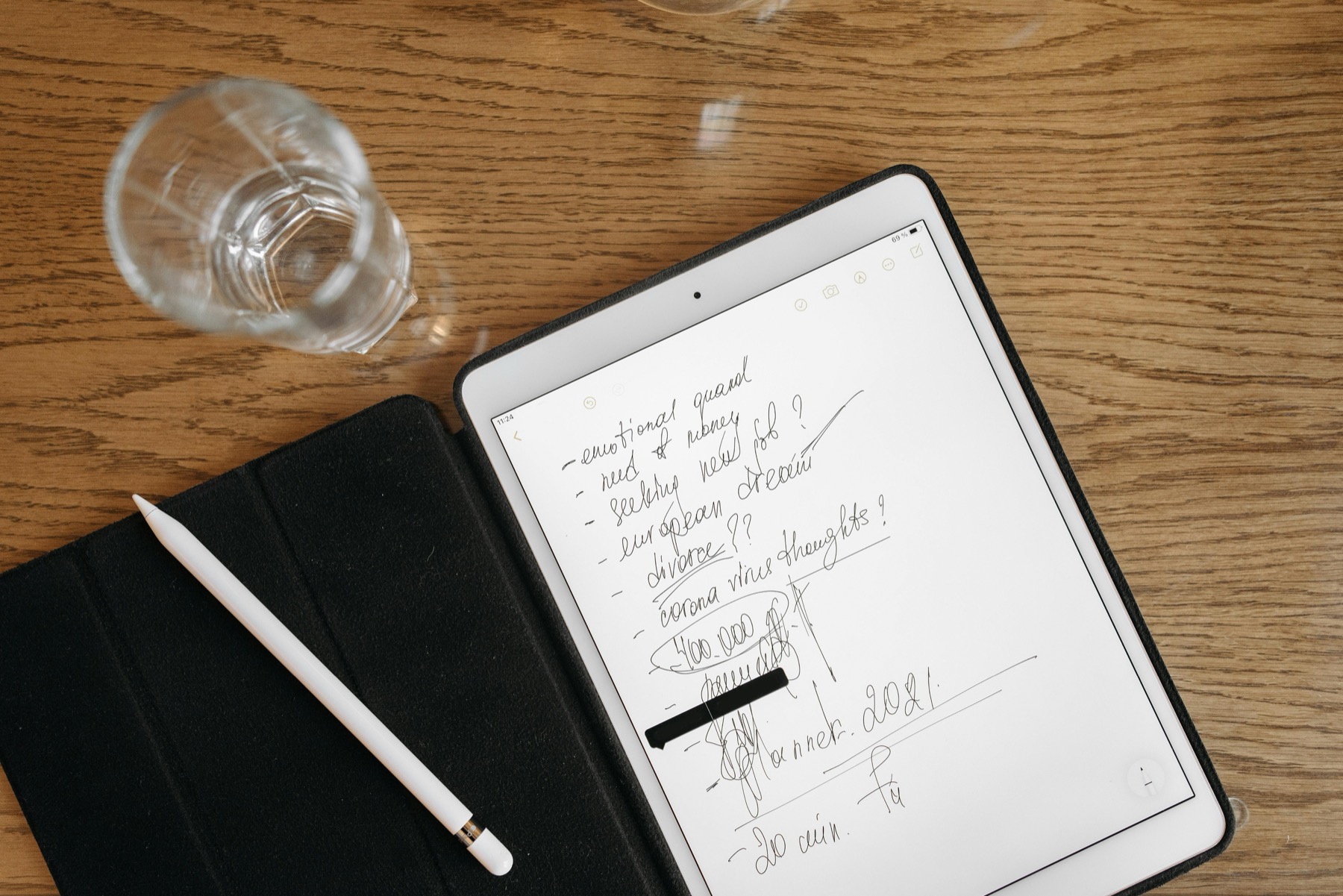
Photo by Pavel Danilyuk on Pexels.
Notability becomes much more powerful for students when the planner is not separate from the notes that create the work in the first place.
Why students get overwhelmed when notes and planning live apart
Students often keep lecture notes in one place, deadlines in another, assignment ideas in a phone app, and random reminders in their heads. That fragmentation is exhausting. It creates more surfaces to check and makes every planning session feel like detective work. Before you can decide what to do, you have to reconstruct what exists. That costs time and attention that could be spent studying.
Notability becomes valuable here because it lets class notes and planner workflows support each other. Instead of treating the planner as a separate aesthetic object, you use it as the central place where class notes turn into next actions. That reduces forgetting, improves review quality, and makes weekly planning feel grounded in real coursework rather than vague intentions.
How to organize Notability for study planning
A practical setup starts with dividers for broad areas such as Semester, Personal, and Admin, or simply one divider per term if you want a cleaner system. Inside the semester area, create a subject for each class and one separate planner subject for your main digital planner. This keeps notes organized by course while preserving one central place for deadlines, weekly planning, and exam preparation.
The key is to avoid unnecessary complexity. Students do not need a dozen filing rules. They need a simple structure that helps them find a lecture note quickly, see the next assignment, and prepare the week without scrolling through unrelated material. Notability’s subject structure is strong enough for this if you keep the architecture simple.
- arrow_right_altUse one subject per class for lecture notes and reading notes.
- arrow_right_altKeep one planner subject for weekly spreads, monthly deadlines, and exam planning.
- arrow_right_altAdd one admin subject for forms, schedules, or university logistics if needed.
- arrow_right_altReview class subjects during your weekly planning session so notes turn into action items.
Product spotlight
A class-friendly planner that stays usable under pressure
The PlannerPier 2026 Kawaii Cat Digital Planner gives students strong hyperlinks, themed structure, and enough notes space to support busy academic routines inside Notability.
- check_circleYearly, monthly, weekly, daily, and notes pages in one linked file
- check_circleA more enjoyable planning environment for long semesters
- check_circlePairs well with class notes and assignment review workflows
How to move from notes to action without rewriting everything
One of the smartest things you can do in Notability is stop copying full notes into the planner. Your lecture subject is for content. Your planner is for commitments, deadlines, and next steps. During or after class, capture only the action that matters: read chapter four, finish the problem set, email the tutor, revise lecture six, or start the group presentation outline.
This keeps the planner usable. Instead of drowning in detail, you create a clean map of what needs to happen and when. If you need deeper context, the lecture note is already in the nearby subject. That relationship between planner and notes is what makes Notability particularly strong for students managing multiple modules at once.
Where PlannerPier products help this workflow feel more natural
A clean student workflow benefits from planner pages that do not compete with the notes around them. The PlannerPier Kawaii Cat Digital Planner is useful if visual personality helps you return to the habit, while the Free Simple Planner works well if you want a lighter academic setup with less visual noise. For students whose overwhelm is more routine-related, the Mental Health Journal can add mood and self-check pages without cluttering the core study planner.
That product integration matters because student planning is rarely just about deadlines. Energy, stress, and recovery shape academic performance too. Using a main planner plus one focused support product can be much more effective than trying to squeeze everything into one overloaded file.
Conclusion: a better study workflow comes from connected systems
The reason many students struggle with planning is not that they lack motivation. It is that their notes, tasks, and deadlines do not live in a usable relationship to each other. Notability can solve a large part of that problem when you use it intentionally. Keep class notes in simple subjects, keep the planner nearby, and use weekly reviews to convert information into action.
Once your system is connected, your planning sessions get shorter and your decisions get clearer. That is the real benefit. A digital planner should not become another thing to manage. It should help you manage everything else with less chaos.
Frequently asked questions
Can Notability work as a student planner app?
Yes. It works especially well when you combine imported planner PDFs with class subjects so notes and assignments stay connected.
Should I keep separate planners for each class in Notability?
Usually no. One core planner plus separate class note subjects is simpler and easier to review than maintaining multiple full planners.
What is the best weekly routine for students in Notability?
Review class subjects once a week, pull upcoming tasks into the planner, confirm deadlines, and assign study blocks before the week gets crowded.
Build a study system that keeps notes and deadlines connected
Visit PlannerPier to explore digital planners and support journals that help students save time, stay organized, and make school planning feel less chaotic.